 Ovobrowser
ovoBrowser Quick Start: Open the first profile in three steps
If you have already installed and logged in ovoBrowser, you only need to complete the following three steps to open the first browser profile.
ovoBrowser Quick Start: Open the first profile in three steps
If you have already installed and logged in ovoBrowser, you only need to complete the following three steps to open the first browser profile.
Step 1: Prepare the proxy (optional)
When there is no proxy, you can use direct connection first; when you need an independent exit IP:
Go to "Proxy Management";
Click "New";
Select HTTP, HTTPS or SOCKS5;
Fill in the proxy name, host, port, username and password;
Click "Test";
Confirm that "Connection test successful", exit IP and target region are displayed;
Click "Save".
You can paste the complete proxy URL into the host input box, and the system will automatically split it after leaving the input box. Supports IP:端口:账号:密码, 协议://账号:密码@IP:端口 and pipe-delimited formats.
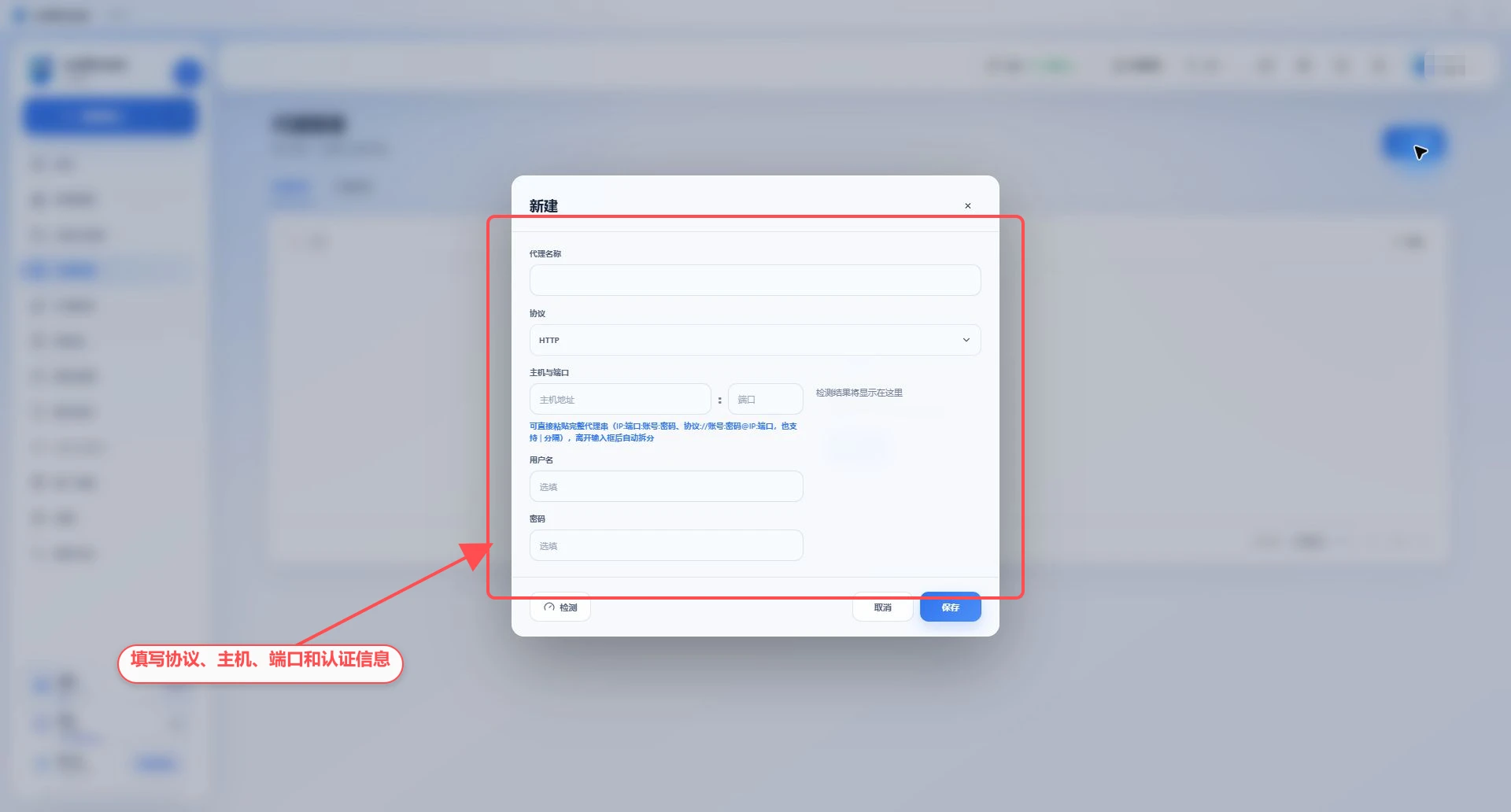
Step 2: Create the profile
Go to "Profile Management";
Click "New profile";
Fill in the profile name;
Select the group, operating system and kernel version;
Select the proxy you just saved in the Proxy settings, or keep the direct connection;
It is recommended to keep the default browser fingerprint settings for first time use;
Click "Save and Launch".
System, User-Agent, time zone, browser language and proxy region should be kept as consistent as possible. When in doubt, use the default or automatic matching, and do not customize User-Agent at will.
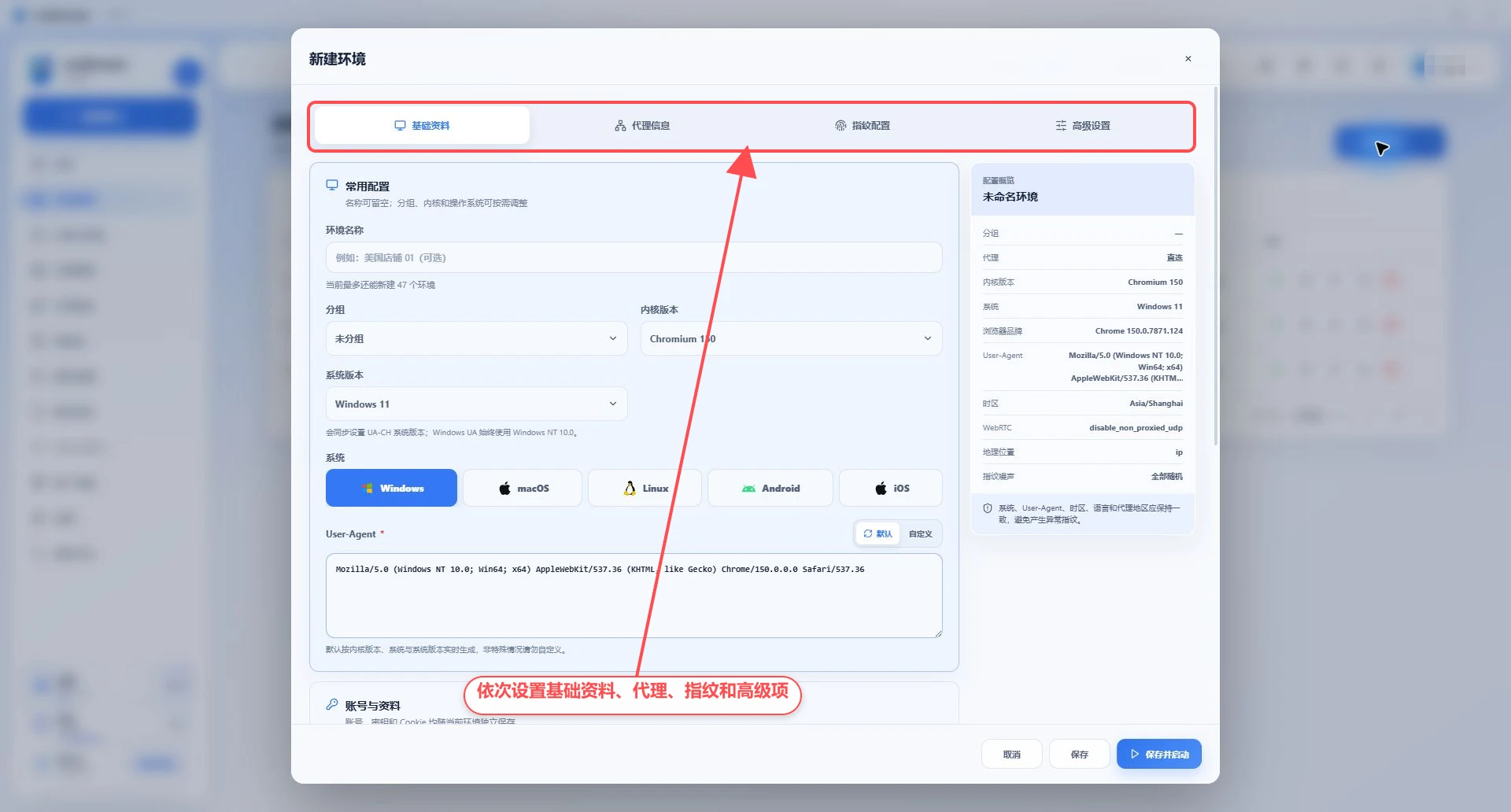
Step 3: Open and close normally
Once created, the profile will appear in the list.
Click "Start" on the right side of the profile row;
Wait for the completion of obtaining configuration, preparing kernel, checking proxy and initialization in the launch progress panel;
Visit the target website in the browser;
After use, return to the profile list and click "Close".
success criteria
The basic configuration has been completed if the following conditions are met:
The profile can be started stably;
The proxy test is successful, and the browser exit IP is consistent with the test result;
The target website can be accessed normally;
After closing and reopening, the launch tabs and saved Cookie can be restored as configured.
Common stuck points
Kernel is downloading
Starting a kernel for the first time requires downloading and decompression, please keep the client running. You can also go to "Settings > System Settings > Version Information" to manually download the kernel.
Proxy test failed
Check the protocol, host, port and authentication information, and then read Proxy Test Failures.
Unable to create a new profile
Check whether the profile quota in the lower left corner is full. After deleting the profile, it will enter the Recycle bin; restoring the profile also requires free quota.
Can't see button
The role of the team team member accounts may not have creation, activation or delegate management permissions, please contact the team owner.