 ovobrowser
Jump to an article section
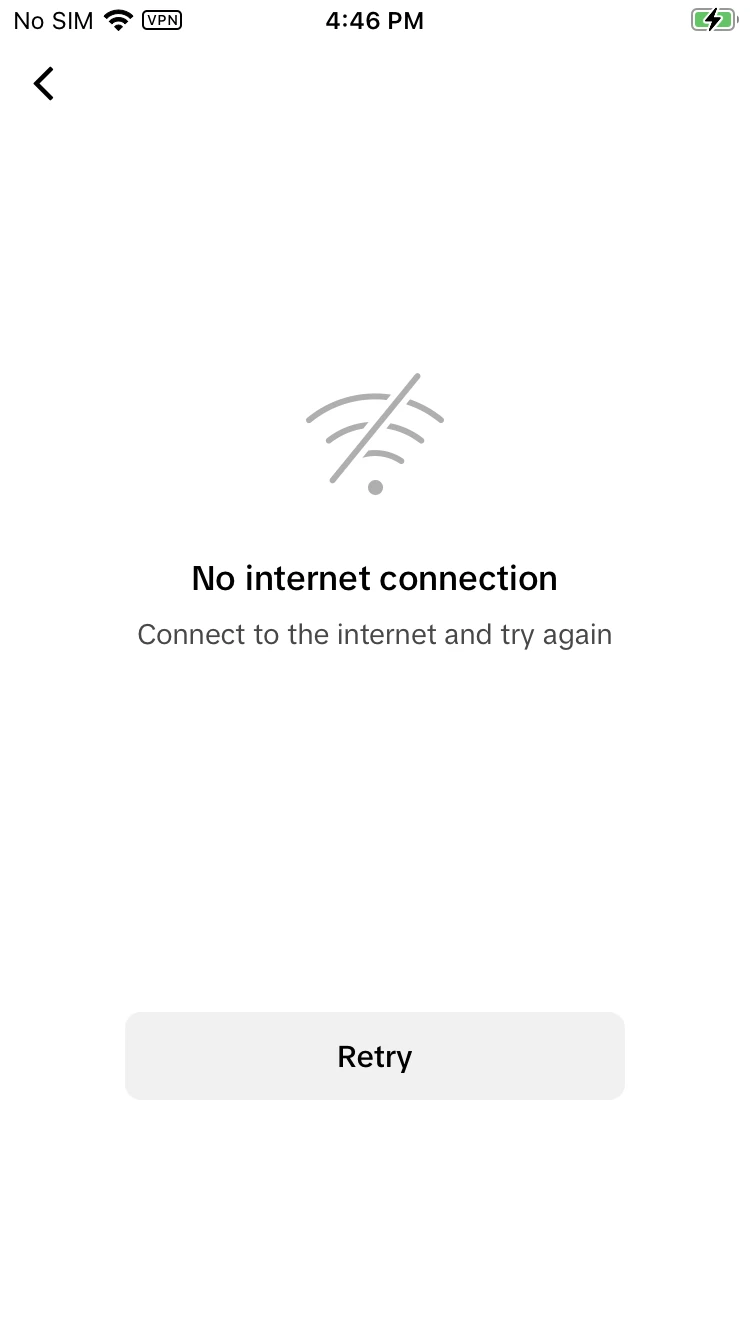
What should I do if TikTok prompts' no internet connection '? Root cause investigation and ovobrowser network environment configuration guide
TikTok shows' no internet connection ', which does not necessarily indicate an issue with the account. This article conducts a detailed investigation from the aspects of local network, proxy configuration, system settings, application status, and platform services. Combined with the official help document of ovobrowser, it explains how to detect HTTP, HTTPS, SOCKS5 proxies, check export IP and latency, and assign verified proxies to the browser environment.

First, determine which layer the problem occurs at: device network, system proxy, proxy service, browser environment, or TikTok application/platform itself. Do not immediately change fingerprint parameters or frequently switch networks upon seeing 'no network connection'.
1、 What could be the reason for TikTok prompting 'no internet connection'?
TikTok displaying "No Internet Connection", unable to load videos, or constantly spinning login pages does not necessarily mean that the reason is due to the account. It is recommended to first clarify whether other websites cannot be opened, whether the problem only occurs on TikTok, and whether it only occurs on a certain network or browser environment.
1. Unstable local network
Weak Wi Fi signals, abnormal router connections, fluctuations in the operator's network, or the current network requiring additional login authentication can all lead to page request failures. If other websites and applications cannot be accessed normally, priority should be given to dealing with the local network.
2. System proxies, VPNs, or network filtering tools affect connections
The computer may have enabled system proxies, PAC, VPN, DNS filtering, or security software network rules. Even if the browser environment chooses "direct connection", it does not necessarily mean bypassing the system proxy; Please check the current device network settings and refer to the actual network detection results.
3. Proxy information filled in incorrectly or proxy service unavailable
Common issues include incorrect protocol selection, incorrect host or port input, incorrect username and password, IP whitelist not updated, proxy expiration, or low traffic.
4. The proxy can connect, but the target website still cannot be accessed
The successful proxy detection only indicates that the detection link was able to complete the test at that time, but it does not necessarily mean that the proxy can access all websites. Proxy service providers may set restrictions on target domain names, regions, ports, or concurrency levels.
5. Abnormal TikTok application, browser cache, or platform services
If other websites are functioning normally and only TikTok has issues, it is necessary to check the TikTok application or webpage itself. TikTok recommends ensuring that the application and device system are newer versions before following the official basic troubleshooting steps.
6. Regional availability, account status, or platform rules
Service availability and functionality may vary in different regions, and accounts may also be affected by platform rules or security measures. Browser environment management tools cannot change the scope of TikTok's service availability, nor can they lift platform restrictions on accounts or features.
2、 First, conduct a basic investigation: identify where the problem lies
Step 1: Test other websites and applications
- Open other frequently used websites and confirm whether the current computer can access the Internet normally.
- If other websites cannot be opened, first check the Wi Fi, Ethernet cable, router, carrier network, or network authentication page.
- If only TikTok is inaccessible, continue to check the status of TikTok applications, browsers, proxies, and platforms.
Step 2: Switch networks for comparison
When conditions permit, switch to a trustworthy and compliant network for testing. If the problem only occurs on a certain network, focus on checking the DNS, access policies, filtering rules, or operator connections of that network.
Step 3: Update and restart the application or device
Confirm that the TikTok application and device system have been updated; Completely close the application and reopen it, and restart the device if necessary. If using the web version, you can reload the page and consider clearing the website's cache or cookies after confirming that the account recovery method is available.
Step 4: Check if it is a platform side issue
If multiple devices and networks are unable to access TikTok at the same time, while other services are functioning normally, it may be due to platform side service abnormalities. Do not repeatedly modify proxy, browser fingerprint, or account settings at this time. Follow TikTok's official announcement first or try again later.
3、 Use ovobrowser to check the proxy and browser network environment
If you use ovobrowser to manage different browser environments, you can use its proxy management and network detection functions to check network configurations more clearly. It should be noted that:ovobrowser itself does not automatically provide public network proxies, proxy services are provided by third parties; The software is responsible for configuring, detecting, and allocating agents.
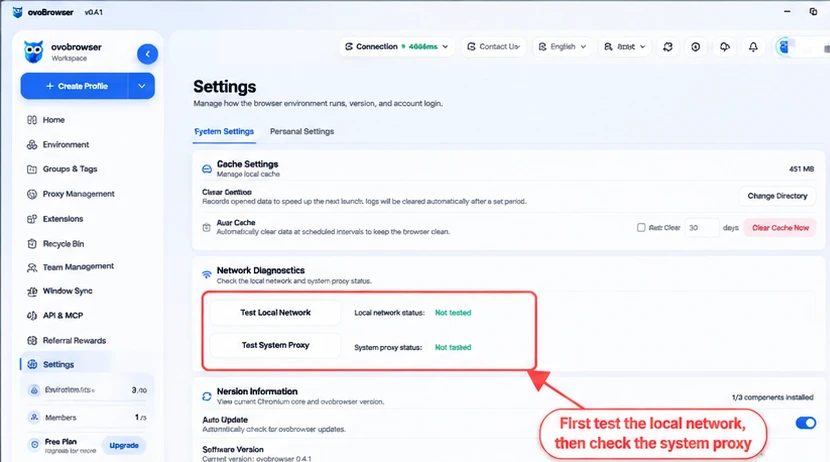
1. First check the local network and system proxy
In ovobrowser, enter:Settings → System Settings → Network DetectionFollow the prompts on the page to perform local network detection and system proxy detection separately, and compare the results of the two tests. If the system proxy detection fails, check the Windows proxy settings, PAC, VPN, Clash, V2Ray, or other local network tools.
2. Verify the information provided by the proxy service provider
- Protocol: HTTP, HTTPS, or SOCKS5;
- Host: Domain name or IP address;
- Port: The correct numerical port;
- Authentication method: username and password, or IP whitelist;
- Service status: whether it has expired, whether the traffic has been used up, whether the node is disabled.
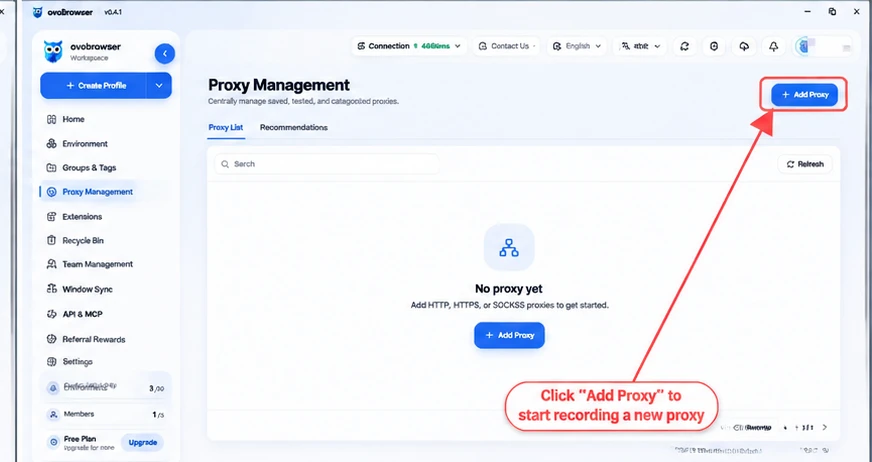
3. Add and detect agents in proxy management
- Go to "Proxy Management ->Proxy List ->New";
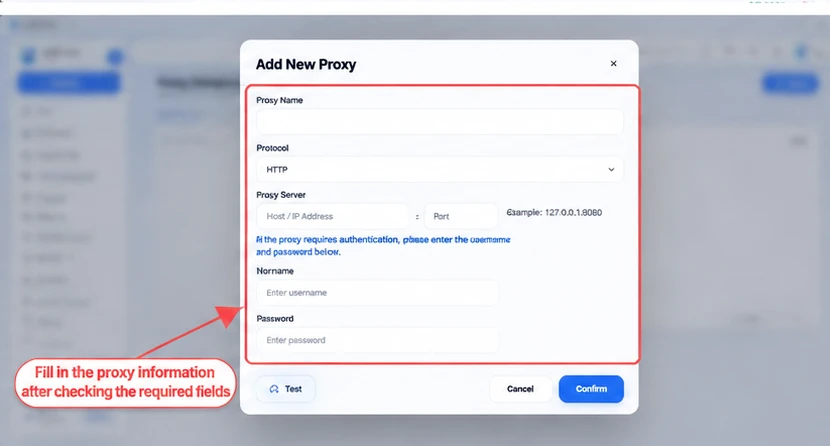
- Fill in the agent name that is easy to identify;
- Choose the protocol actually provided by the service provider;
- Fill in the host and port;
- Fill in the authentication information as required by the service provider;
- Click 'Detect' to view the export IP, region, latency, and actual connection method;
- Save the test results after they meet expectations.
4. Assign the detected proxy to the browser environment
Enter "Environment Management", create or edit the target environment, open "Agent Information", select "Added Agents", select the target agent, click "Check Network", confirm the results, and save the environment. When different public network exits are needed, do not repeatedly assign the same proxy to these environments. Directly connect to the environment using the current computer's actual export network; Multiple directly connected environments typically share the same public IP address.
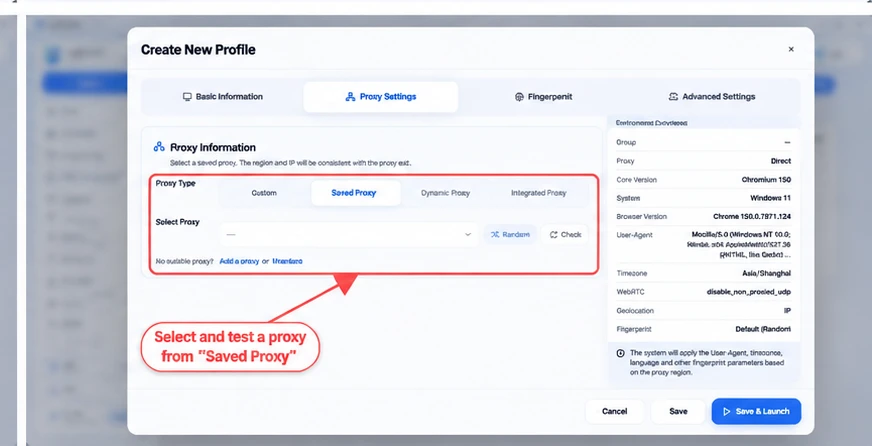
5. After successful detection, test TikTok again
After passing the proxy detection, start the corresponding browser environment, open the TikTok webpage, and observe the actual results. Please record the proxy detection, other website visits, TikTok homepage loading, and login page display separately. If other websites are functioning normally but TikTok still cannot be accessed, it is necessary to continue confirming whether the proxy service provider has restricted the target website or region, and to check TikTok's own service status and official rules.
4、 Common errors and handling methods in ovobrowser proxy detection
| Performance testing | Common inspection directions | Suggested handling |
|---|---|---|
| Connection timeout, unable to reach | Host/port error, local network failure, firewall, proxy offline | Check the host port, switch to network testing, and contact the proxy service provider |
| Connection refused | The target port does not have a proxy service, or the service is refusing to connect | Confirm protocol, port, and node status |
| DNS resolution failed | Proxy host domain name cannot be resolved | Check the spelling of the domain name DNS, Or confirm the node address with the service provider |
| 407. Authentication failed | Incorrect username, password, or authentication method | Recheck the authentication information; The IP whitelist method requires confirmation that the export IP has been approved |
| 403 or policy prohibition | The service provider rejects the target area, port, or detection target | Contact the service provider to confirm the package and target access restrictions |
| TLS handshake failed | Protocol selection error or server TLS requirement mismatch | Select HTTP, HTTPS, or SOCKS5 again according to the service provider's instructions |
| The detection was successful, but TikTok still cannot be opened | Proxy target access restrictions, TikTok page/service issues, or regional policies | Test other websites and TikTok separately, and check the official instructions |
Use cross testing to determine which side the problem belongs to
- The same agent fails on different devices: prioritize checking the agent itself or service provider.
- Multiple available agents only fail on the current computer: prioritize checking the local network, system agents, or security software.
- Only links that pass through the system proxy are successful: it indicates that the local direct connection path may not be able to access the upstream proxy.
- Proxy detection successful, but target website failed: further check the proxy's restrictions on the target website.
5、 Frequently Asked Questions (FAQ)
Can ovobrowser directly solve TikTok's lack of network connection?
I cannot guarantee. ovobrowser can help you configure, detect, and manage your browser environment and proxy network, but cannot fix TikTok server failures, account restrictions, regional service restrictions, or proxy service provider access restrictions on the target website.
Does ovobrowser come with a proxy IP?
Do not automatically provide public network proxies. Users need to choose third-party proxy services based on their business needs. Before purchasing, you should check the service area, protocol, concurrency, traffic, validity period, and compliance requirements by yourself.
3. The proxy detection was successful, why is TikTok still unable to open?
Proxy detection and accessing a specific website are two separate things. Please confirm that the current environment is using a newly detected proxy and check if the proxy service provider restricts TikTok related domain names, regions, or ports; At the same time, rule out any abnormalities in TikTok web pages or platform services.
4. Does every direct connection environment have a different IP address?
no Use the currently available network outlet of the computer in a direct connection environment; If no independent proxy is configured, multiple direct connection environments usually share the same public IP. When different public network exits are needed, different and available proxies should be configured according to actual needs.
5. Should I modify the browser fingerprint if the detection fails?
It is not recommended to make modifying fingerprints the first step. First, verify the proxy protocol, host, port, authentication information, and local network. Do not blindly modify fingerprint parameters.
6. If the problem cannot be solved, who should I give feedback to?
If it is a problem with the TikTok app or account, use the "Report a Problem" feature within the official TikTok app to submit feedback; If it is an issue with the ovobrowser client or proxy detection, you can contact ovobrowser support through the "Contact Us" option within the client. Do not disclose proxy passwords, account passwords, cookies, or 2FA keys when providing feedback.
VI. Summary
TikTok prompts' no internet connection ', don't rush to change accounts or modify browser parameters for now. Following the sequence of "local network → system proxy → proxy service → browser environment → TikTok page and platform status" is usually easier to identify the problem.
For teams that need to manage multiple browser environments, ovobrowser can centralize proxy configuration, detection, and environment allocation, making the network settings used by each environment clearer and easier to verify. It is an environmental management and network configuration tool, not an official TikTok service, and does not guarantee bypassing platform restrictions.
Official information and reference links
Related articles

How to register and subscribe to overseas AI platforms? ChatGPT, Claude Preparation and ovobrowser Management Guide
From official support regions, account verification, subscription payments to browser work environment management, we will outline the compliance preparation process for AI platforms such as ChatGPT and Claude, and introduce how ovobrowser organizes the account environment for personal or authorized use.
Read article
2026 Facebook Page Growth Guide: Content Strategy, Daily Operations, and Multi Account Collaboration
For cross-border e-commerce, overseas brands, and social media operation teams, Facebook page growth is not simply about increasing the number of posts, but about continuously providing valuable original content, establishing clear brand positioning, responding to audiences in a timely manner, and adjusting content direction based on data. This article starts with homepage preparation, content planning, 30 day operation rhythm, team collaboration, and data review, and introduces how ovo Browser helps teams manage multiple authorized business environments more clearly.
Read article
How to choose ovo Browser, GoLogin, and AdsPower?
Free version, automation, comprehensive price comparison
Read article