 Ovobrowser
ovoBrowser Beginner’s Guide
This tutorial is suitable for users who are using anti-detect browser for the first time. Upon completion, you will be able to create groups, add proxies, create profiles, save accounts and Cookie, and master daily launch, close, and troubleshooting methods.
ovoBrowser Beginner’s Guide
This tutorial is suitable for users who are using anti-detect browser for the first time. Upon completion, you will be able to create groups, add proxies, create profiles, save accounts and Cookie, and master daily launch, close, and troubleshooting methods.
First understand the three core objects
profile
A profile is an independent set of browser configurations, including operating system, kernel, User-Agent, time zone, language, hardware parameters, proxies, Cookie, launch tabs, and browser behavior. Different profiles should serve different work accounts.
Group
Groups are used to organize your profile, for example by customer, store, country, project or person in charge. group does not automatically change the profile's proxies and browser fingerprints.
proxy
The proxy determines the network exit when the profile accesses the website. The direct connection profile uses the actual exit of the current computer; multiple profiles need to use different public IPs and need to assign different proxies.
Recommended first-time configuration sequence
Create business groups;
Add and test proxies;
Create a profile and select groups and proxies;
Add account, Cookie and launch tab;
Start the profile and verify the egress IP;
Close it normally and reopen it to confirm data recovery.
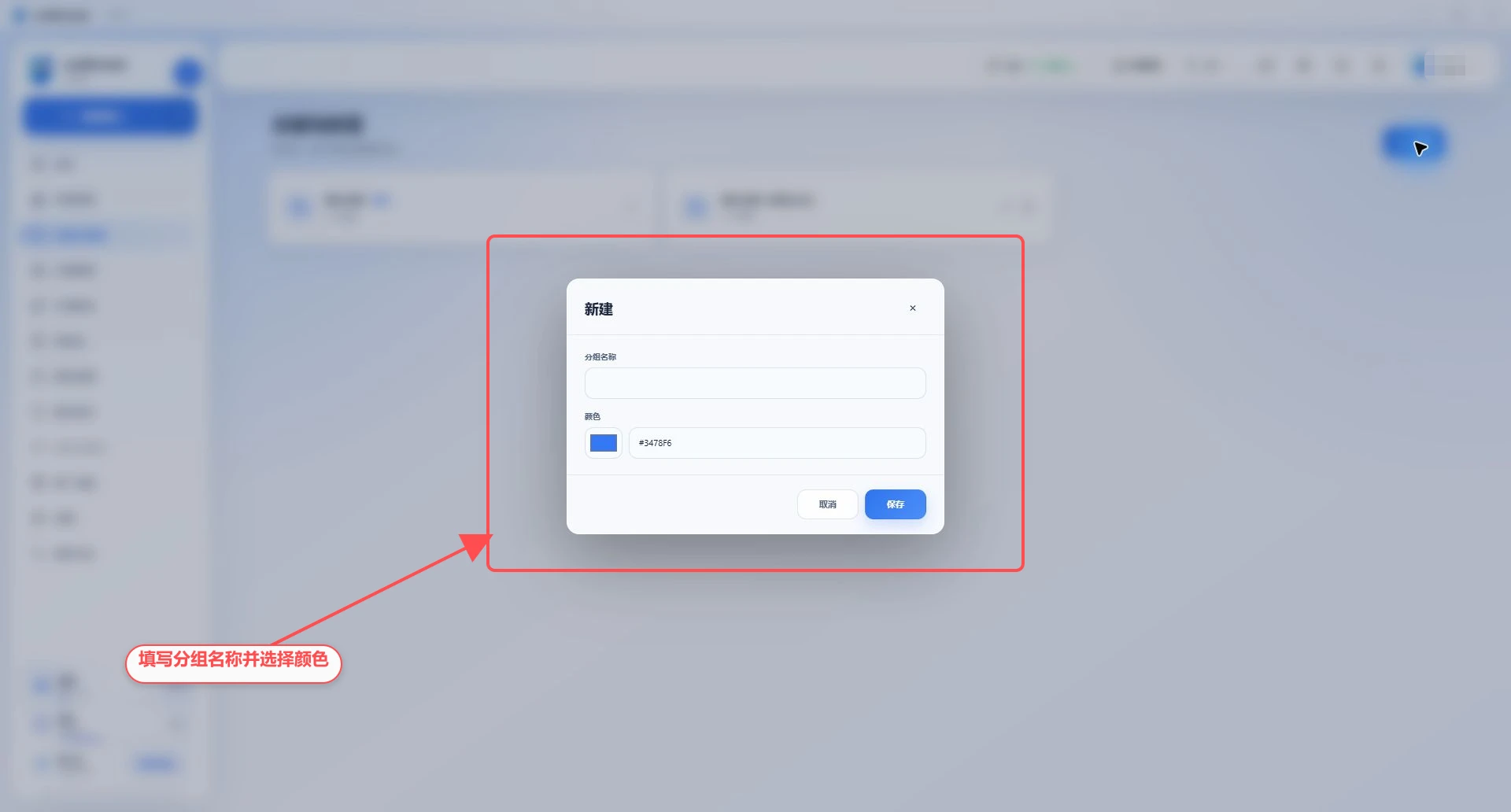
1. Create a group
Go to "Groups & Tags";
Click "New";
Enter a group name of no more than 50 characters;
Choose color;
Click "Save".
The system comes with default groups. The color or name of the default group can be modified, but cannot be deleted.
2. Add proxy
Go to "Proxy Management > Proxy List";
Click "New";
Enter the proxy name;
Choose the agreement provided by the proxy provider;
Fill in the host, port and authentication information;
Click "Test";
Check exit IP, country or region and delay;
Click "Save".
If the test results do not match the region of purchase, do not continue to use it. First confirm the Proxy settings, whitelist and local network before contacting the proxy provider.
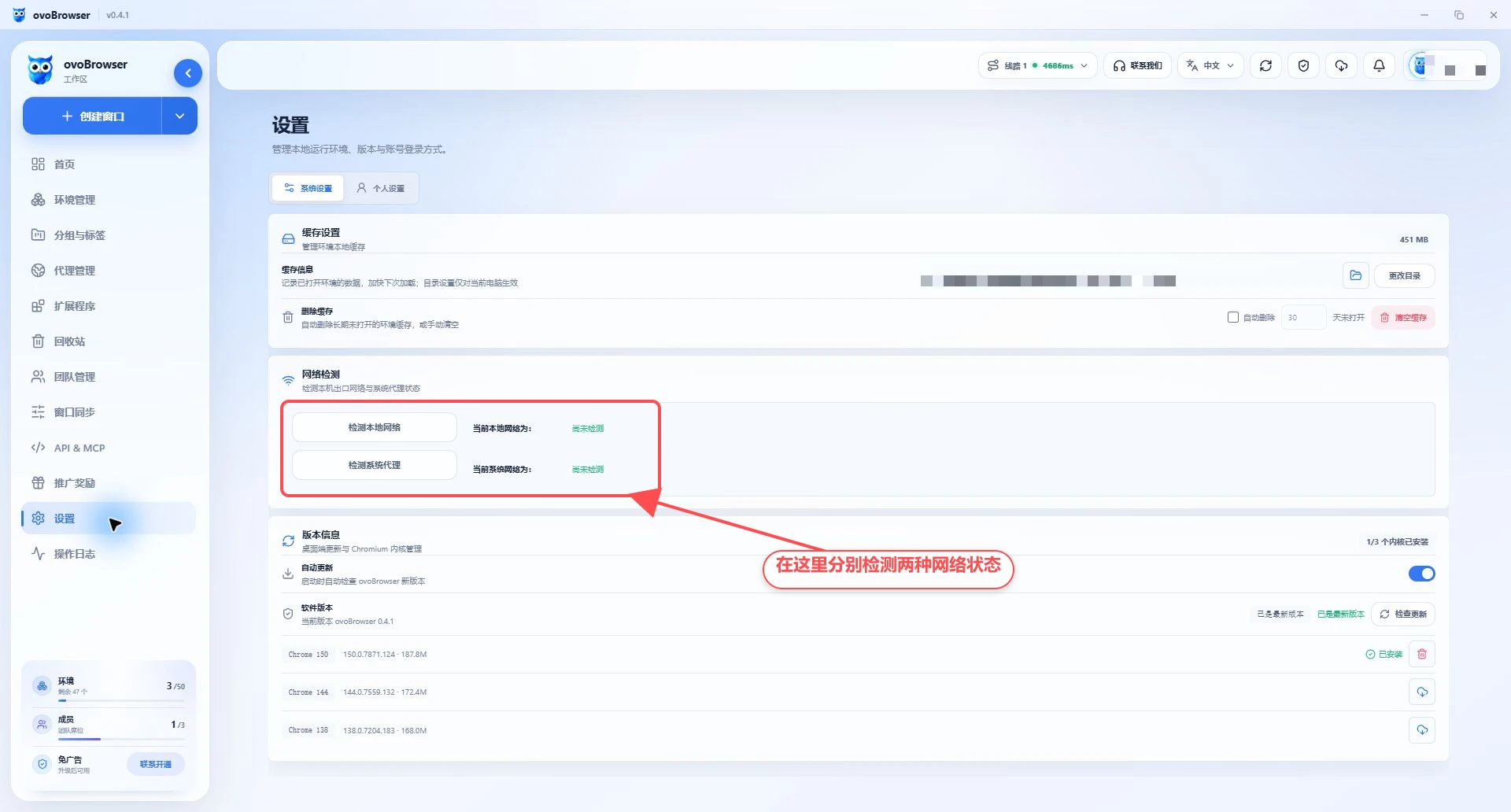
Before starting to test the proxy, you can also go to "Settings > System Settings > Network Test" to check the local network and system proxy respectively. The picture below is the real page before testing is performed; after clicking the corresponding button, the actual measurement results returned by the page shall prevail.
3. Create a profile
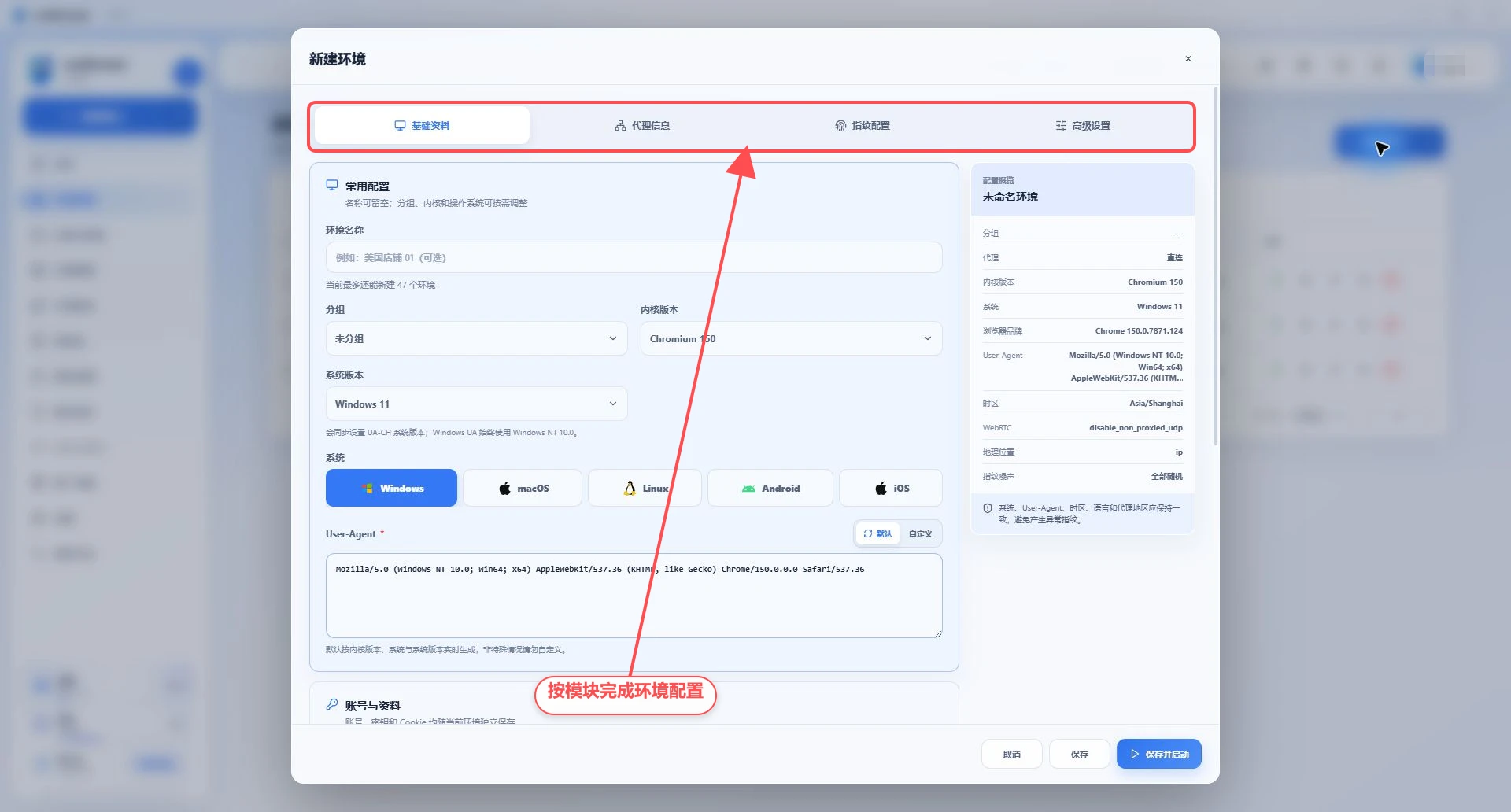
Go to "Profile Management" and click "New profile". The configuration page is mainly divided into the following parts.
Basic information
profile name: It is recommended to use the "project-country-account" rule;
Group: Select the business group just created;
kernel version: select the target Chromium version;
Operating system: Windows, macOS, Linux, Android or iOS;
Note: Record the person responsible, usage or expiration information.
Account and information
Multiple platform accounts can be saved, including platform, username, password and 2FA key in Base32 format. After enabling "Automatically open the platform login page at launch", the launch profile will open the corresponding website. The account assistant can fill in the account password in the kernel and generate the 2FA verification code.
Cookie supports JSON array, cookies.txt or name=value; formats. After importing, you should check the system identification number and error prompts.
Proxy settings
You can select a saved proxy, randomly select a proxy, or fill in a custom proxy for the current profile. Custom proxies only belong to the current profile. Click "Check Network" to confirm the exit IP before saving.
browser fingerprints settings
It is recommended to keep the default value for first time use. Key points to follow:
The operating system, system version and User-Agent must match;
The browser major version and the kernel major version must match;
The time zone, browser language and geographical location should be consistent with the proxy’s exit region;
When special compatibility is not required, do not customize hardware and screen parameters;
Fixed noise seeds keep the same profile stable across multiple launches.
Advanced settings
You can set launch tabs, image blocking, media autoplay, mute, notifications, permission pop-ups and password saving behaviors. Start tabs one per line, only support http:// or https:// addresses.
4. launch and Verification profile
After saving, click "Start";
View the launch progress panel;
Wait for downloading and decompression when using the target kernel for the first time;
After opening the browser, visit the IP query website;
Compare exit IP, time zone and language to see if they are as expected;
Log in to the business website and complete the necessary settings.
If the proxy test is successful but the browser export is different, first confirm the proxy actually selected by the profile, and then check the system proxy or VPN.
5. End a session correctly
After completing the operation, it is recommended to click "Close" from the profile list. The client will try its best to save the opened tab, Cookie and exit IP. Forcefully ending the process may result in the last session data not being saved.
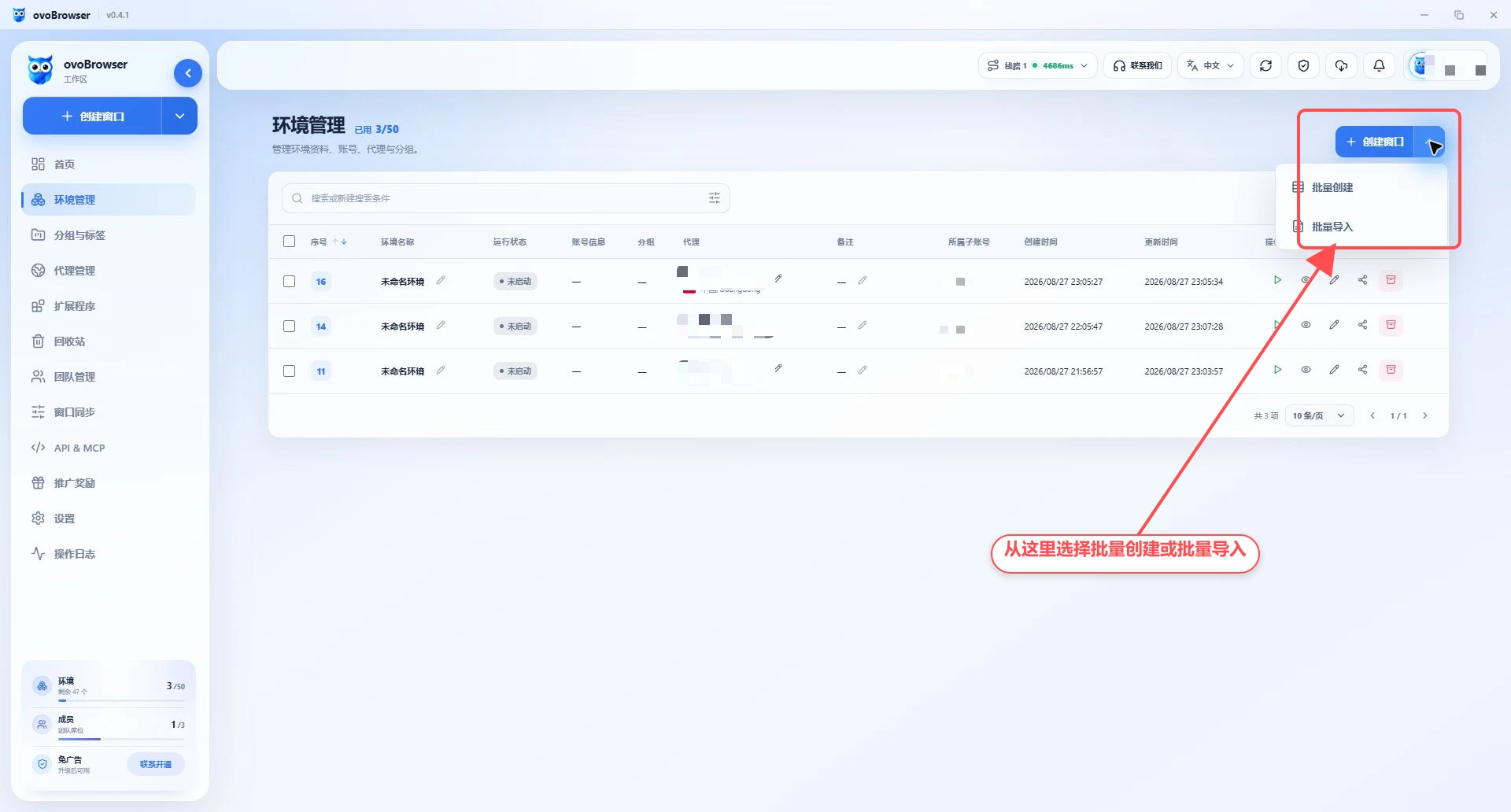
6. Batch creation profile
Batch creation of the same configuration
Click "More Creation Methods > Batch Creation", set the name prefix and quantity, and then configure the public account, Cookie, proxy, fingerprint and advanced settings. Create up to 100 profiles at a time and generate independent, stable fingerprint noise seeds for each profile.
Spreadsheet import
Click "More Creation Methods > Form Batch Import" and download the template. Supports XLSX, XLS and CSV, with a maximum of 100 lines and 10 MB for a single file. After uploading, check the valid lines and error lines in the preview and correct them before importing.
7. Daily management suggestions
Unified naming: use fixed naming rules;
One number, one profile: Do not mix the same work accounts in multiple profiles;
One profile, one proxy: avoid multiple profiles sharing exports when network isolation is required;
Test first and then start: re-test after proxy changes;
Normal close: Let the client complete the session save;
Regular cleaning: only clean caches that have not been used for a long time and have been confirmed to have no important local data;
Least Permission: Team members are only granted the permissions they need to do their job;
Keep sensitive information out: Do not expose passwords, Cookie, proxy credentials, and 2FA keys in screenshots, tickets, or logs.
8. Advanced functions
Use Install and manage extensions to load extensions for all or specified profiles;
Use Window Sync to batch operate multiple open profiles;
Use Team Member and Permission Management to create members and roles;
Use API Quickstart to access Playwright, Puppeteer or Selenium;
Use Cached File FAQ to manage disk usage and cache directories.