 Ovobrowser
Cached file FAQ
The profile cache of ovoBrowser is saved on the current computer to save the browser's local data and speed up the next loading. profile records, configurations, and the Cookie snapshot saved during normal close belong to another set of data. "Clear cache" and "delete profile" cannot be confused.
Cached file FAQ
The profile cache of ovoBrowser is saved on the current computer to save the browser's local data and speed up the next loading. profile records, configurations, and the Cookie snapshot saved during normal close belong to another set of data. "Clear cache" and "delete profile" cannot be confused.
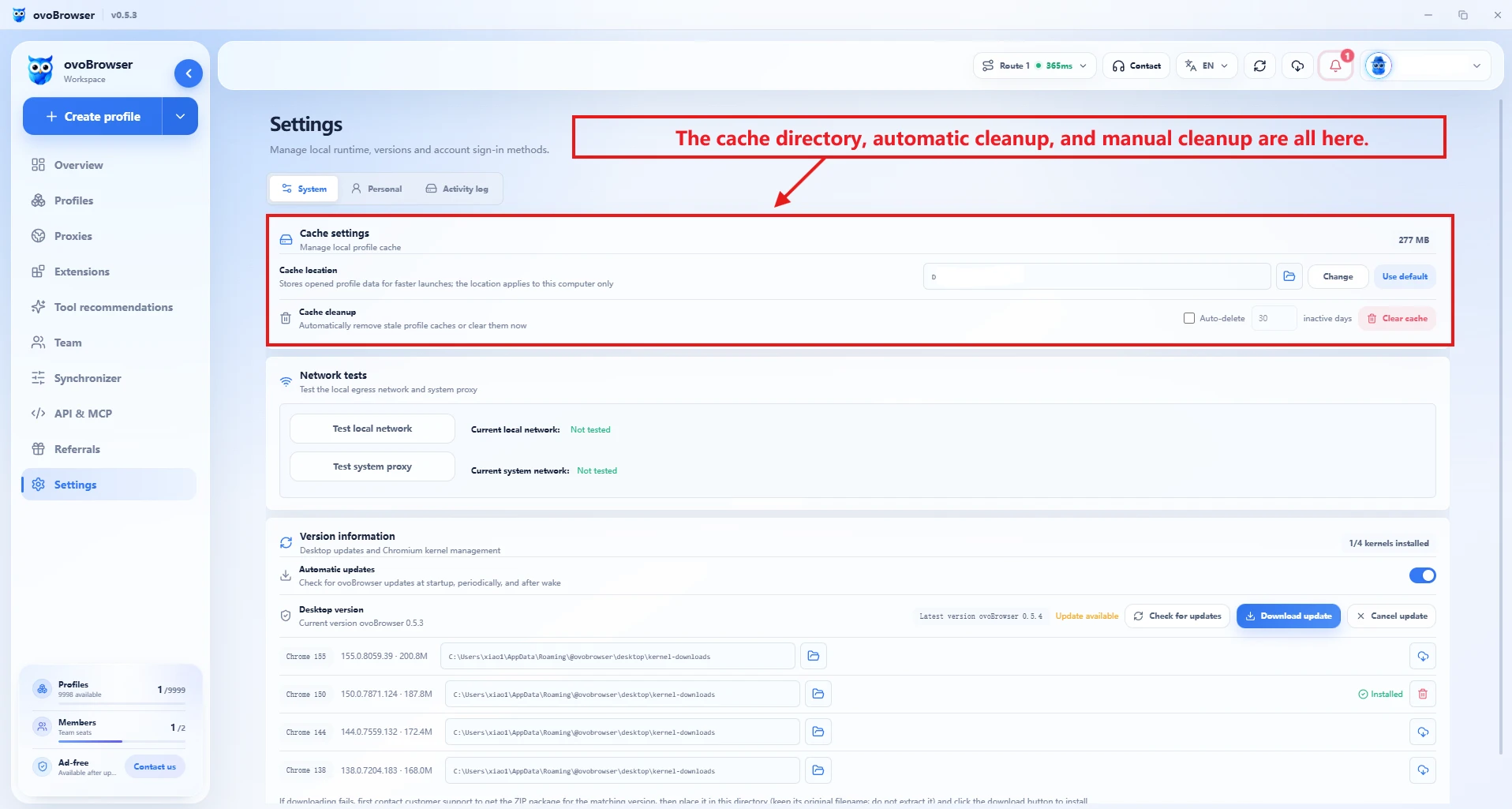
1. View cache information
Go to "Settings";
Select "System Settings";
Find "Cache Settings";
Check the current cache directory and used space;
Click "Open cache directory" to view it in the resource manager.
Do not manually delete files in a directory while the profile is running, or you may corrupt the current session.
2. Change the cache directory
First close all running profiles;
Click "Change Directory";
Select the target disk or folder;
The client will use the dedicated
ovoBrowser-cachesubdirectory at the target location;Wait for the existing profile cache migration to complete;
Refresh the cache information and confirm the new path.
Cross-disk migration may require copying a large number of files, please keep the client running and reserve sufficient space. New directories cannot be nested within old directories, and old directories cannot be nested within new directories.
Click "Restore Default" to move back to the default directory. You also need to close the entire profile first.
3. Manually clear the cache
Shut down important profiles normally and wait for the status to become not running;
Click "Clear Cache";
Read the confirmation prompt;
Click "Confirm Clear";
View the amount of space released and profile cache deleted.
The running profile will be automatically skipped, so it may still be occupied after cleaning.
4. Automatically delete caches that have not been opened for a long time
Turn on "Automatic deletion" in the cache settings and set the number of days after which it will be cleared after it has not been opened. The valid range is 1–3650 days.
Automatic cleaning only processes the profile cache that has exceeded the set time and is not running, and will not delete the profile records in the server. The client will limit the execution frequency and may not run repeatedly immediately after being enabled.
5. What will be deleted by clearing the cache?
It is possible to delete the profile that is not running on the current computer:
Page caching;
local storage;
IndexedDB;
Local data generated by expansion;
Other Chromium user directory data.
Will not be deleted directly:
profile records in the server;
group and proxy records;
Recycle bin records;
Installed ovoBrowser client;
Separately managed Chromium kernel installation package.
When shutting down normally, Cookie will try to save to the server snapshot, which can be re-injected later; however, there is no guarantee that all local status of the website can be restored.
6. Is the login status still there after clearing the cache?
Depends on how the site saves the session:
Mainly relies on Cookie: it can usually be restored through the server Cookie after a normal close;
Depends on localStorage, IndexedDB, Service Worker or device binding: You may need to log in again after clearing the local cache;
Forced end of process: The last Cookie change may not be synchronized;
The website actively invalidated the session: cannot be restored via local cache.
Before cleaning up important profiles, you should:
Normal close;
Confirm that the account and 2FA recovery method are available;
Record necessary business recovery information;
Test unimportant profiles first.
7. Cache options when deleting a profile
When deleting a profile in "Profile Management", you can check "Also delete profile local cache".
Unchecked: the profile enters the Recycle bin, and the local cache may be retained;
Checked: The profile enters the Recycle bin and attempts to delete the local cache;
Local cache deletion failed: the profile may still have entered the Recycle bin, and the page will prompt the number of single or batch failures;
Restoring the profile from the Recycle bin: All local caches that have been physically deleted cannot be restored.
8. Kernel files do not belong to the profile cache
The Chromium kernel is managed separately in "Settings > Version Information". Clearing the profile cache will not unload the kernel. To release kernel usage:
Close the profile using the kernel;
Enter version information;
Select the target kernel;
Click "Uninstall" and confirm.
9. Frequently Asked Questions
When changing directories, you are prompted to shut down the profile first.
There cannot be a running profile during cache migration. Return to Profile Management and close in batches, confirm that there are no browser windows and try again.
Cache directory migration is slow
Cache files are usually large in number and will be deleted after being copied across disks. Do not force quit the client, wait for completion and check the target disk space.
There is no significant change in disk space after cleaning
It may be because the running profile is skipped, the profile cache itself occupies a small amount, or the main space is occupied by the kernel, installation packages, and other software. Close all profiles and clean them again, and check the kernel management separately.
Can I delete it directly using the resource manager?
Not recommended. The client will verify the profile directory and skip the running profile. Manual deletion may cause accidental deletion or inconsistent status. Prioritize using the cleanup function in cache settings.
Will uninstalling ovoBrowser delete the custom cache directory?
The installer will record the custom cache directory for the uninstall process to recognize, but you should still carefully read the option to delete the data when uninstalling. Manually back up important information before uninstalling, and do not assume that all caches will be retained or deleted.