 Ovobrowser
Configure HTTP/HTTPS/SOCKS5 proxy
ovoBrowser supports HTTP, HTTPS and SOCKS5 upstream proxies. This tutorial explains how to select, fill out and verify the three protocols.
Configure HTTP/HTTPS/SOCKS5 proxy
ovoBrowser supports HTTP, HTTPS and SOCKS5 upstream proxies. This tutorial explains how to select, fill out and verify the three protocols.
1. Prepare Proxy settings
Obtain from the proxy provider:
agreement;
proxy host;
proxy port;
Username and password, or IP whitelisting rules;
Exporting country or region;
Validity, traffic and concurrency limits.
Don't guess the protocol based on the port number. Use the protocol specified by the proxy provider.
2. The difference between the three protocols
HTTP
The client connects to the proxy server in the normal HTTP CONNECT mode. It can still access the HTTPS website through the tunnel.
HTTPS
The client first establishes a TLS connection with the proxy server and then sends CONNECT. Only select it if the service provider explicitly provides the HTTPS proxy entrance.
SOCKS5
Use the SOCKS5 protocol to establish tunnels and support optional username and password authentication. Do not mistake the SOCKS4 or regular HTTP ports for the SOCKS5.
During client test, available connection methods will be tried based on the compatibility differences of some proxy providers, but the protocol base type must still be selected correctly.
3. Add field by field
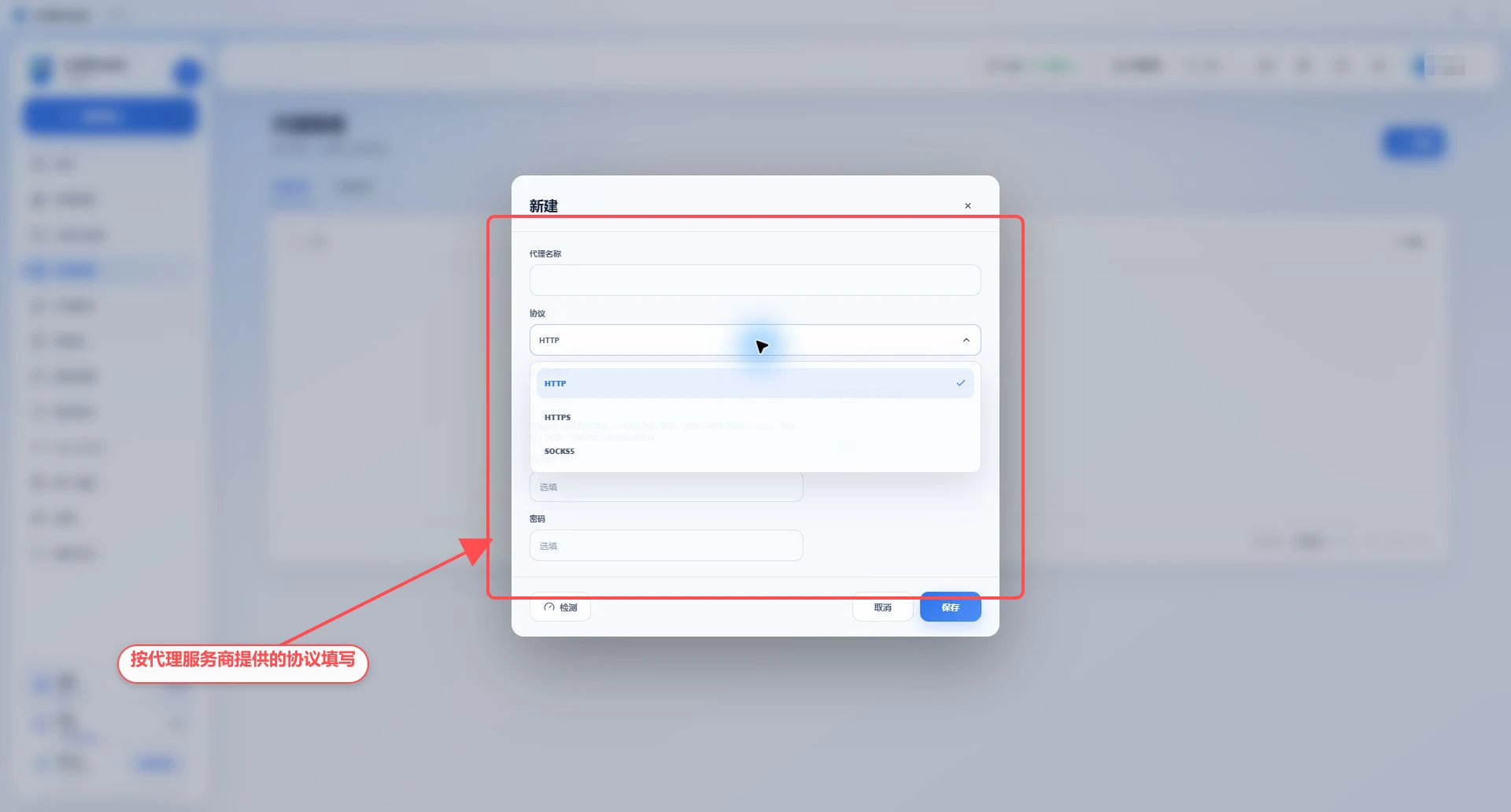
Go to "Proxy Management" and click "New";
Fill in an easily identifiable proxy name;
Select HTTP, HTTPS or SOCKS5;
Fill in the domain name or IPv4 address in the host, do not append the web page path;
The port is filled in with an integer from 1–65535;
Fill in the corresponding fields during username and password authentication;
Username and password are usually left blank during IP whitelist authentication;
Click "Test";
Check exit IP and region;
Click "Save".
4. Add using proxy URL
No certification
203.0.113.10:8080
http://203.0.113.10:8080
socks5://203.0.113.10:1080
Username and password authentication
203.0.113.10:8080:user01:password01
203.0.113.10|8080|user01|password01
http://user01:[email protected]:8080
https://user01:[email protected]:443
socks5://user01:[email protected]:1080
Paste the proxy URL into the "Host" input box, leave the input box or press Enter, and the system will automatically split it. When there is no protocol prefix, the default is HTTP, which should be checked again after splitting.
The example address uses a document reserved address and cannot be used directly for networking.
5. IP whitelist proxy
Find the whitelist settings in the proxy provider's backend;
Go to "Settings > Network Test" to view the actual exit of the local network and system proxy;
Add the public IP used when actually connecting to the proxy server to the whitelist;
Wait for the service provider configuration to take effect;
Leave the username and password blank in ovoBrowser and check.
If the local public IP changes, the whitelist needs to be updated in time.
6. Test and preservation
After clicking "Test", successful results should include egress IP, location, and latency. Please confirm:
The egress IP is not the original IP of the local machine;
The country or region is consistent with the purchase information;
Delay is within business acceptable range;
The result is no authentication or policy errors;
The actual connection is as expected.
When the test fails, do not save it directly for production use. Please read Proxy Test Failures first.
7. Assign to a profile
Create or edit a profile;
Select "Saved proxy" in "Proxy settings";
Select target proxy;
Click "Check Network";
Save and start;
Confirm the exit IP again in your browser.
8. Common filling errors
Fill in the entire
http://section to the host, but do not allow automatic parsing to complete;Write the username, password, host and port in reverse order;
Select HTTPS, but the service provider actually provides HTTP;
Treat SOCKS4 as SOCKS5;
Port contains spaces or is not an integer;
The IP whitelist allowed the wrong local export;
When the password contains special characters, it will be truncated by the copy tool;
The proxy has expired or has run out of traffic.
9. Safety tips
The full proxy URL is equivalent to the network credentials;
Don’t post proxy strings to public chats or take screenshots;
Use the minimum necessary concurrency;
Rotate passwords regularly and clean out unused proxies;
The proxy provider can observe the connection metadata and should choose a trusted service provider.