 Ovobrowser
Use window sync
"Window Sync" can synchronize the mouse, keyboard and scrolling operations of a master window to multiple follow-up windows, and provides window arrangement, text input and tab batch management capabilities.
Use window sync
"Window Sync" can synchronize the mouse, keyboard and scrolling operations of a master window to multiple follow-up windows, and provides window arrangement, text input and tab batch management capabilities.
Prerequisites for use
Open at least two ovoBrowser profiles;
The current role has Window Sync permission;
The target browser window is in a normal operating state;
It is recommended to use Chrome 111 and above kernels for tab management;
Save important work before synchronizing, and batch operations will be applied to the target window immediately.
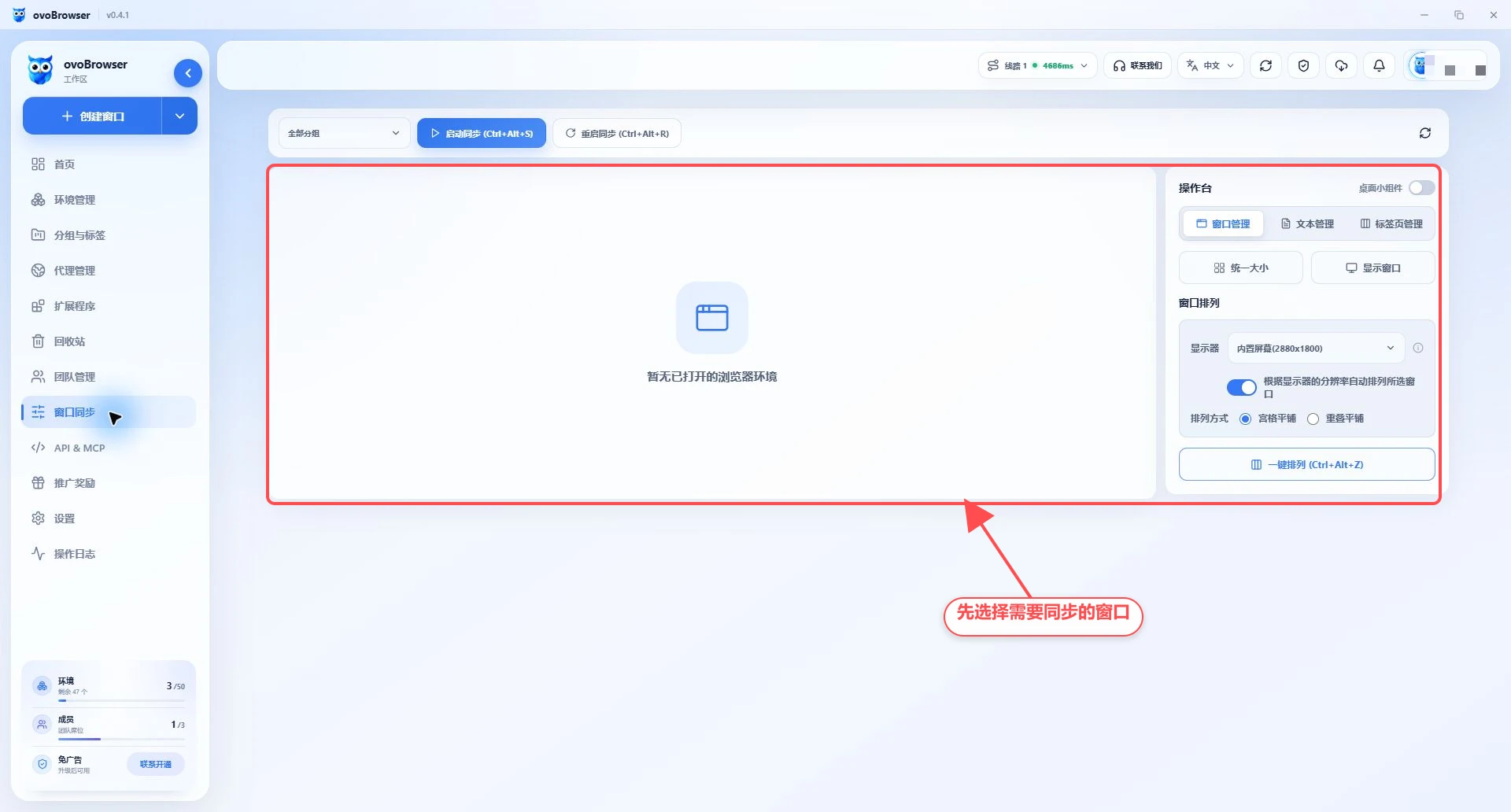
1. Select the window and start synchronization
First open the profile that needs to be operated in "Profile Management";
Go to "Window Sync" and click Refresh;
Windows can be filtered by group;
Check at least two windows;
Click "Set as Master" in a row;
Click "Start Sync", or use
Ctrl+Alt+S;Confirm that the master status and number of follow windows are correct.
When the master is not set manually, the system will use the first one in the selected window as the master.
2. Stop and restart synchronization
Stop synchronization: Click "Stop synchronization" or use
Ctrl+Alt+D;Restart synchronization: Click "Restart synchronization" or use
Ctrl+Alt+R;Realign: When the connection is abnormal or the label status is inconsistent, use the realignment function in the console.
When "Some profile connection exceptions" appear in the synchronization status, first confirm that the follow window is still running, and then restart synchronization.
3. Window management
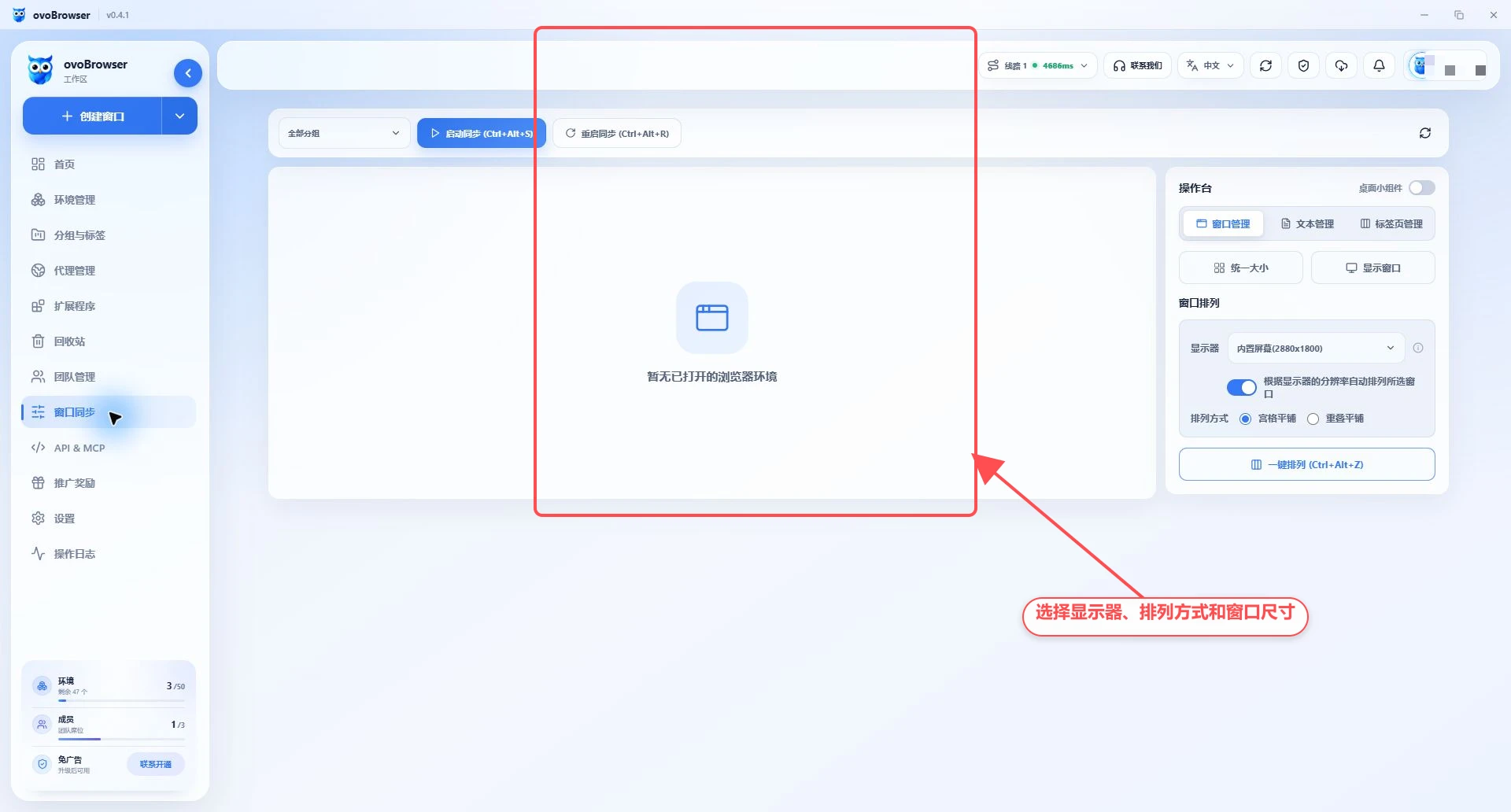
The console’s window management supports:
Unify window size;
Show blocked windows;
Choose built-in screen or extended screen;
Grid tiling or overlapping tiling;
Set the starting position, window width and height, horizontal and vertical spacing;
Set the number of windows per row;
Arrange according to monitor resolution with one click.
Start Sync, Restart Sync, Show Window, and One-Click Arrange will all move the target window to the selected monitor.
4. Text Management
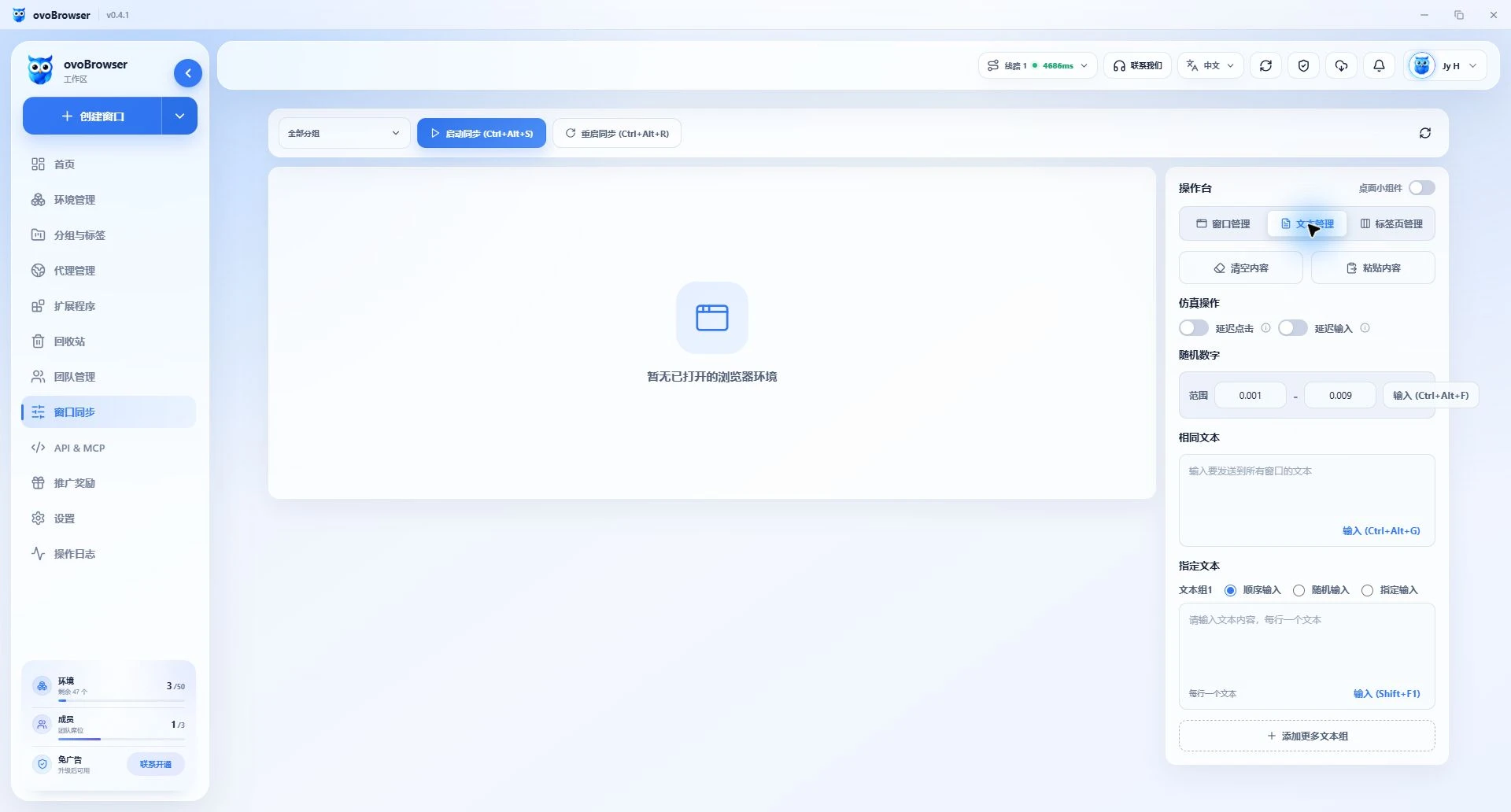
same text
Let each target window focus on the target input box first, enter content in the "same text" and then send it. All selected windows will receive the same text.
Specify text
Multiple text groups can be created and selected:
Sequential input: allocate each line of text sequentially in window order;
Random input: randomly select from the text group;
Specify input: use
序号:文本, for example1:hello, and the serial number is calculated according to the order of the check window.
Simulation operation
Delayed click and delayed input can be turned on. Delayed input is written verbatim and random waiting is added to simulate manual input rhythm. The random number function generates input within a specified range.
Clear input
Clicking Clear will attempt to clear the contents of the currently focused input box in the target window.
5. Tag page management
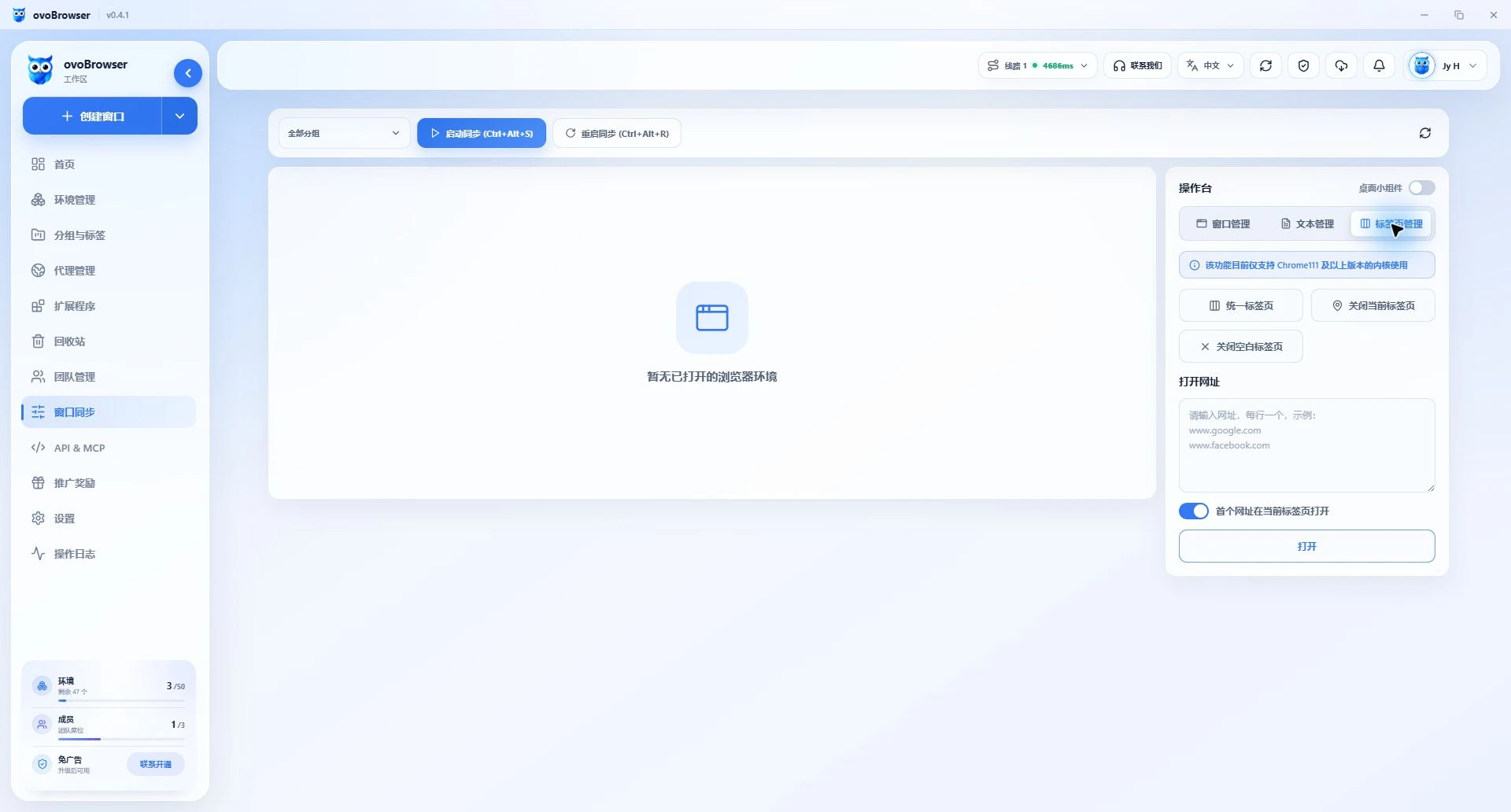
Tab management support:
unified tab page;
Refresh the current page;
Close other tabs;
Close the current tab;
Close the blank tab;
Open URLs in batches;
Select whether the first URL should be opened in the current tab.
When opening URLs in batches, fill in one address per line. URLs without written protocols will be processed according to the current functional rules, but to avoid ambiguity, it is recommended to fill in https:// completely.
6. Desktop widgets
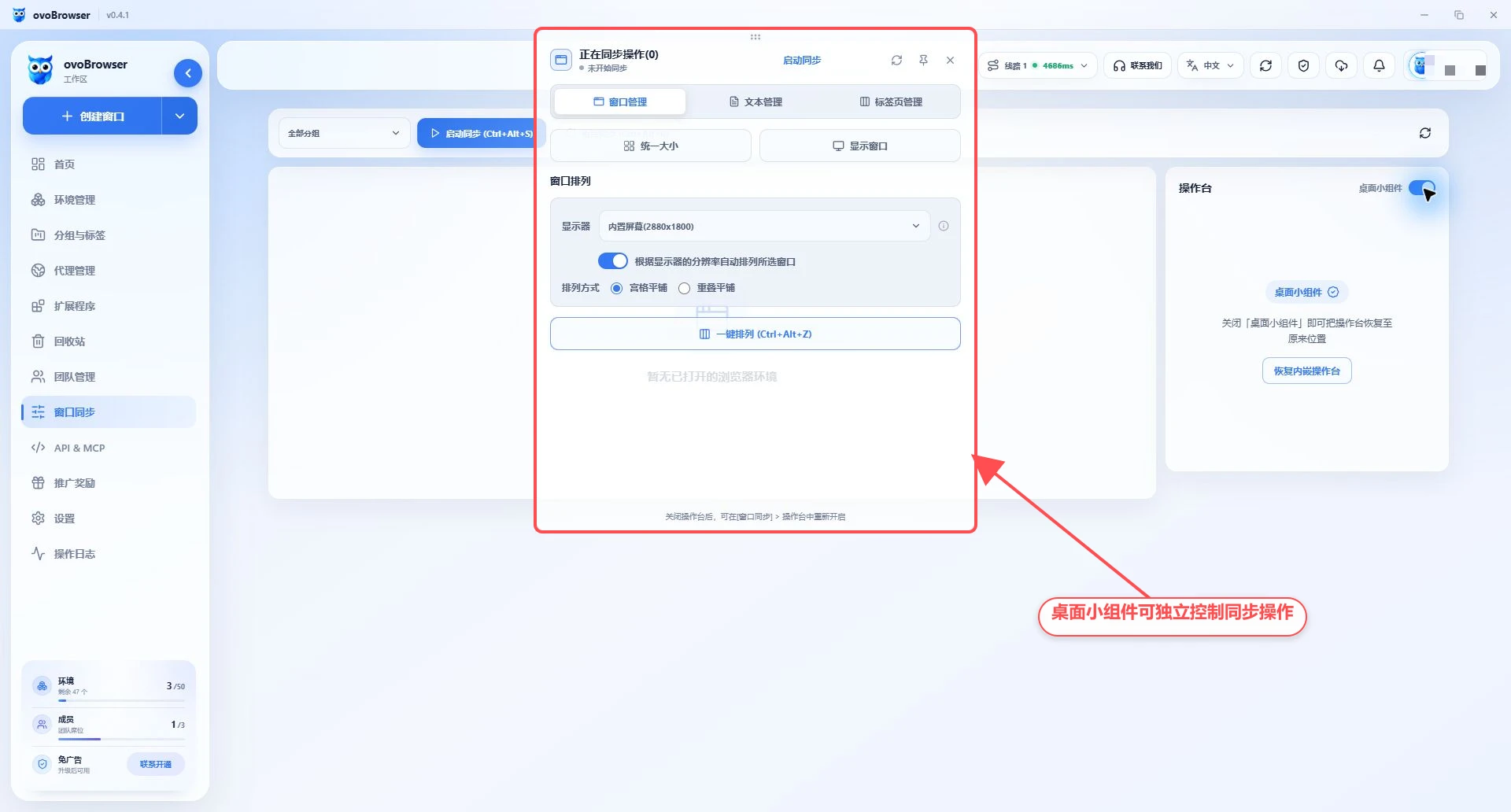
After opening the "Desktop Widget", the console will switch from the client page to an independent floating window, making it easier to operate next to the browser window.
Turn off the widget switch to restore the embedded console;
The embedded console will be automatically restored when the widget fails to open;
Can be collapsed, expanded or pinned to full version;
After closing the console, you can return to "Window Sync > Console" to reopen it.
7. Common reasons for failure
Prompt to select at least two windows
Synchronization requires at least one master and one follower window. Recheck two or more running profiles.
Text not sent
The console distinguishes between the following causes:
The window is not running;
The connection is broken;
There is no capture input box;
There are multiple input boxes on the page;
The page refuses to be written;
The text assigned to this window is empty.
The most common solution is to click on the correct input boxes in the target window one by one and then resend.
Mouse or keyboard not synchronized
Confirm that the synchronization status is active, the target window is not closed, and the master control is selected correctly. Stop and then restart synchronization; if the error persists, close and reopen the target profile.
Tab operations are not available
Verify that the kernel version is Chrome 111 or higher and restart the sync connection.
Security advice
The first synchronization is verified on the test page;
Do not blindly synchronize high-risk operations such as payment, deletion, and publishing;
Check the selected window and main control before sending;
Check window order before specifying text;
Stop synchronization in time after the operation is completed to avoid misoperations from continuing to spread.