 Ovobrowser
Bulk Profile Management Guide
"Profile Management" is used to manage the complete life cycle of the browser profile. Each profile can independently save accounts, Cookie, proxies, browser fingerprints, launch tabs and browser behavior.
Bulk Profile Management Guide
"Profile Management" is used to manage the complete life cycle of the browser profile. Each profile can independently save accounts, Cookie, proxies, browser fingerprints, launch tabs and browser behavior.
1. Understanding the profile list
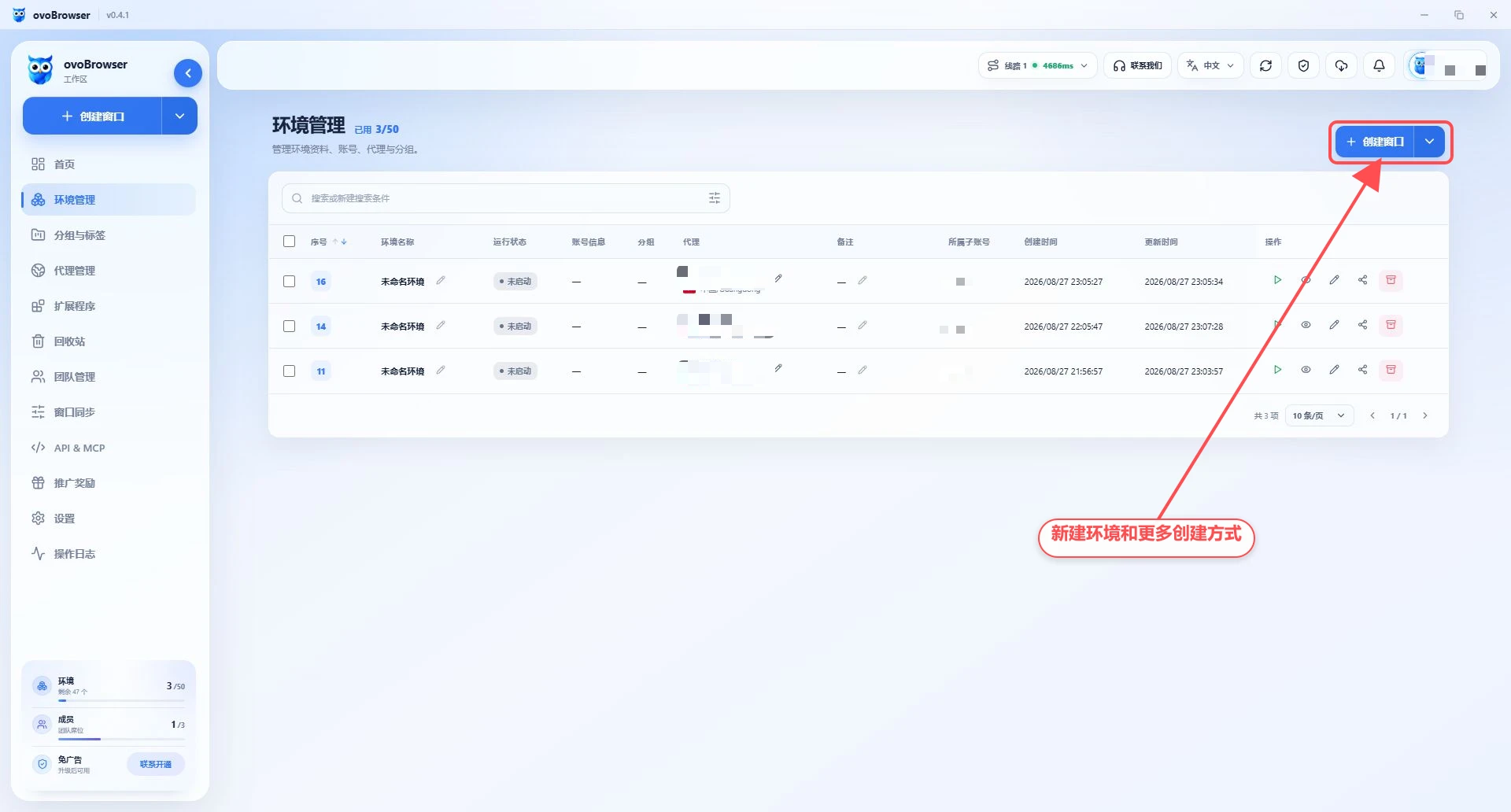
The profile list will display the profile serial number, name, account information, group, proxy, operating system, owning team member, creation or update time, and running status. You can:
Filter by name, serial number, group and other conditions;
Adjust the display quantity and sorting of each page;
Directly modify the profile name or remarks;
View details or edit a profile;
Start, shut down, share or delete profiles;
Check multiple profiles to perform batch launch, batch close or batch deletion.
Team members can only see data within their scope of authority. The profile "owning team member" is used to describe resource ownership.
2. Create a new single profile
Go to "Profile Management";
Click "New profile";
Configure the profile using the sections below;
Click Save to create the profile without opening it, or Save and Launch to open it immediately.
When the profile quota is insufficient, you cannot create a new profile. Current usage and the total quota will be displayed in the lower left corner of the client.
Basic information
profile name: can be left blank, it is recommended not to exceed 80 characters and use unified naming rules;
Group: Select an existing group. If not selected, enter ungrouped or default group;
kernel version: select Chromium kernel;
Operating system: Supports Windows, macOS, Linux, Android and iOS configurations;
Notes: Up to 500 characters, suitable for recording owner, purpose or expiration date.
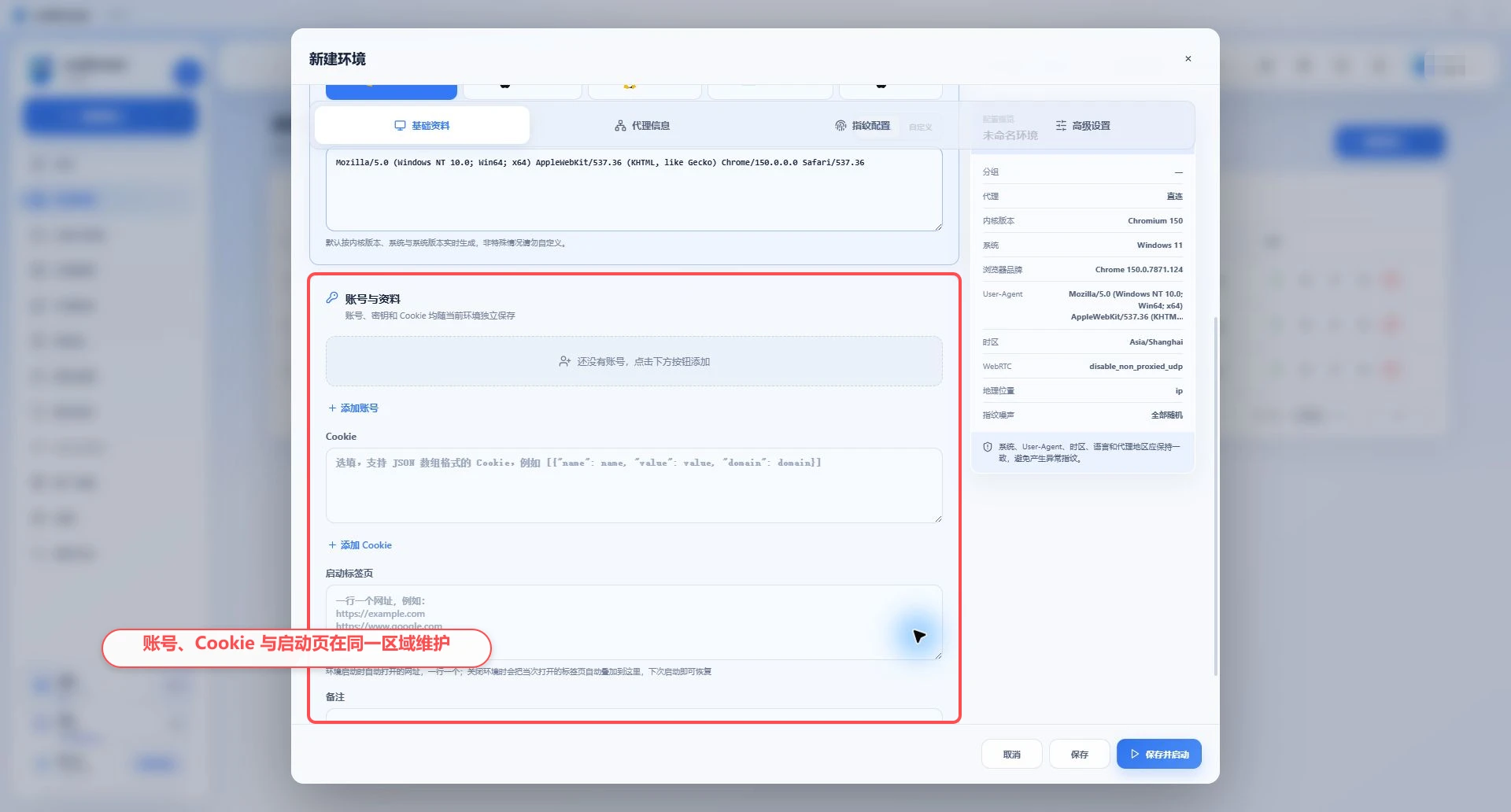
Account and information
Multiple platform accounts can be added to a profile. Each account can be set:
Account platform or custom domain name;
User account;
User password;
2FA key in Base32 format;
Open the platform's sign-in page automatically when the profile starts.
The account assistant will be launched with the profile and can be used to fill in the account password and generate the 2FA verification code. The maximum number of accounts that can be added to a single profile depends on the limit shown in the app.
Sensitive fields are saved separately. Do not expose account passwords and 2FA keys in screenshots, support tickets, or shared documents.
Import Cookie
Cookie supports common JSON array, Netscape cookies.txt and name=value; formats. You can add multiple segments of Cookie, and the system will merge and display the number of recognized cookies.
Note after importing:
The brackets and quotation marks of JSON must be complete;
Each Cookie requires at least
name;When the domain name is missing, the system will try to complete it based on the launch URL;
The content of a single profile Cookie cannot exceed 1,000,000 characters;
The total number of Cookie in batch operations cannot exceed the limit prompted by the page.
Configure proxy
Proxy options include:
Direct connection: no independent proxy is specified for the profile;
Saved proxies: Select from "Proxy Management" or select randomly;
Custom proxy: only belongs to the current profile and does not enter the public proxy list.
After filling in or selecting the proxy, click "Check Network". Successful results will display the exit IP, region, latitude and longitude, zip code, query channel and actual connection method. If the test fails, do not start it directly. Please read Proxy Test Failures first.
Configure browser identity
This area controls the kernel, browser brand, system version, User-Agent, time zone, and browser language.
Suggestions:
Priority is given to using the default generated User-Agent;
When customizing User-Agent, the Chrome major version must be consistent with the kernel major version;
The operating system and system version should be consistent with User-Agent;
The time zone and language should be consistent with the proxy’s exit region;
Don't modify all fields on first use just to be "more random".
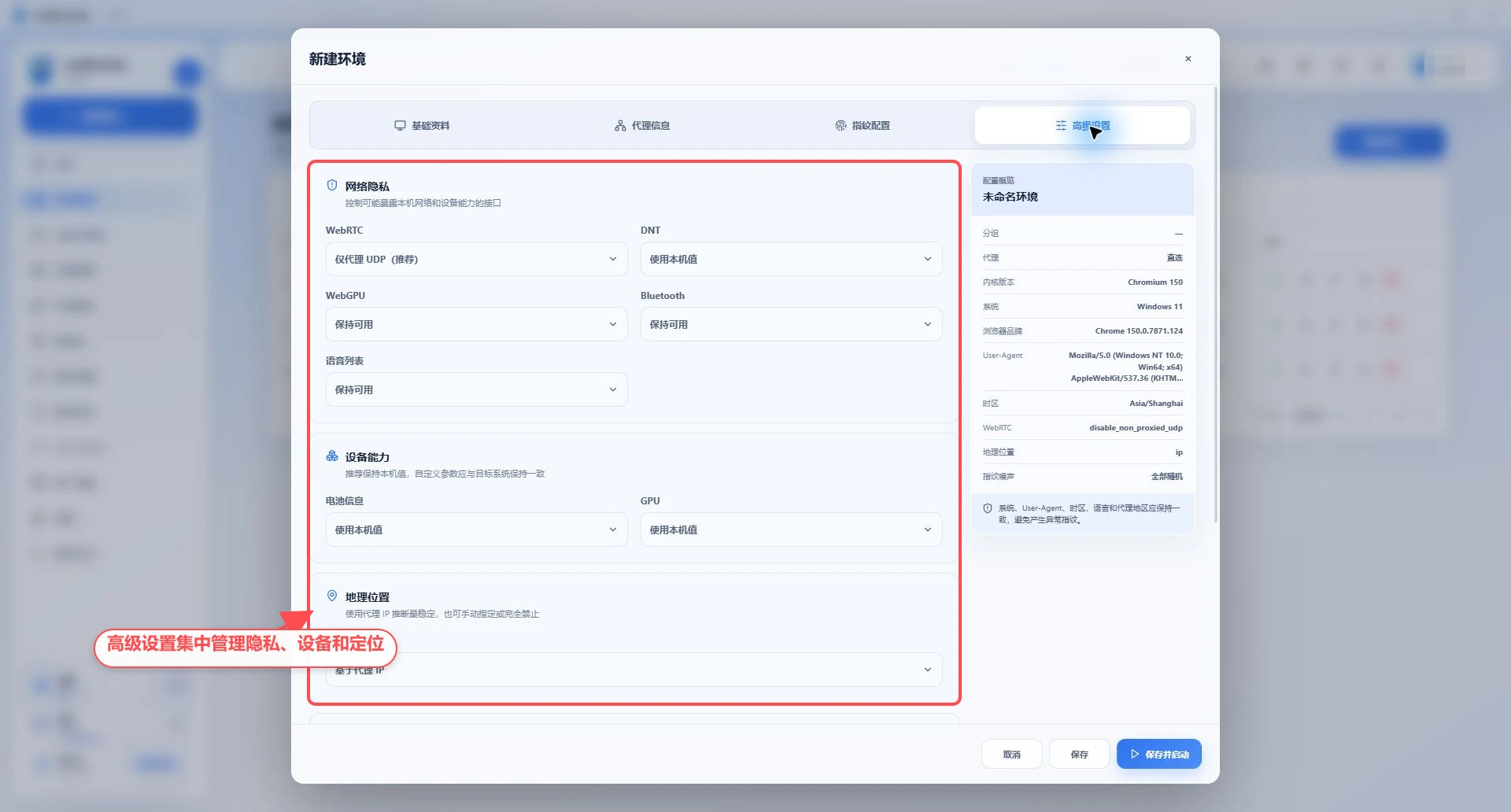
Configuring Hardware, Privacy and Noise
You can set the number of CPU cores, device memory, screen resolution, color depth, scaling factor, battery information, WebRTC, WebGPU, Bluetooth, voice list, geolocation, and Canvas, WebGL, audio, ClientRects and font noise.
The fixed noise seed is used to maintain stability across multiple launches of the same profile; leaving it blank or enabling randomize each time will cause relevant features to change from launch to launch. Unless there are clear compatibility requirements, it is recommended to retain the system default or stable values.
Configure browser behavior
Advanced settings control:
Block images and maximum image size;
Prevent media from playing automatically;
Silent by default;
Block website notifications;
Automatically reject camera, microphone and other permission prompts;
Disable or allow browsers to save passwords;
Launch the tab.
Start tabs one per line, only accept URLs starting with http:// or https://. When the profile is closed normally, the tabs opened this time will be saved according to the current product logic for next recovery.
3. Starting and shutting down the profile
Start
After clicking "Start", the lower right corner will display: obtain launch configuration, prepare kernel, check proxy, test network, start kernel and initialize profile. The first time you use a kernel you need to download and decompress it.
Close
After clicking "Close", the waiting status changes to "not running". A graceful close will trigger the saving of session information such as tab, Cookie, and egress IP. When the close times out, first confirm whether the browser window and residual processes have actually exited, and then try again.
Batch launch and close
Use batch operations after checking the current page profile. The system skips repeated launches of running profiles, or skips close of non-running profiles, and displays success and failure counts upon completion.
4. Batch creation profile
Create in batches using the same configuration
Click "More Creation Methods > Batch Creation";
Set the name prefix and creation quantity;
Configure the account, Cookie, proxy, fingerprint and advanced settings to be applied to all new profiles;
It is recommended to turn on "Generate independent random browser fingerprints for each profile";
Check the remaining profile quota;
Submit to create.
A maximum of 100 profiles can be created at a time.
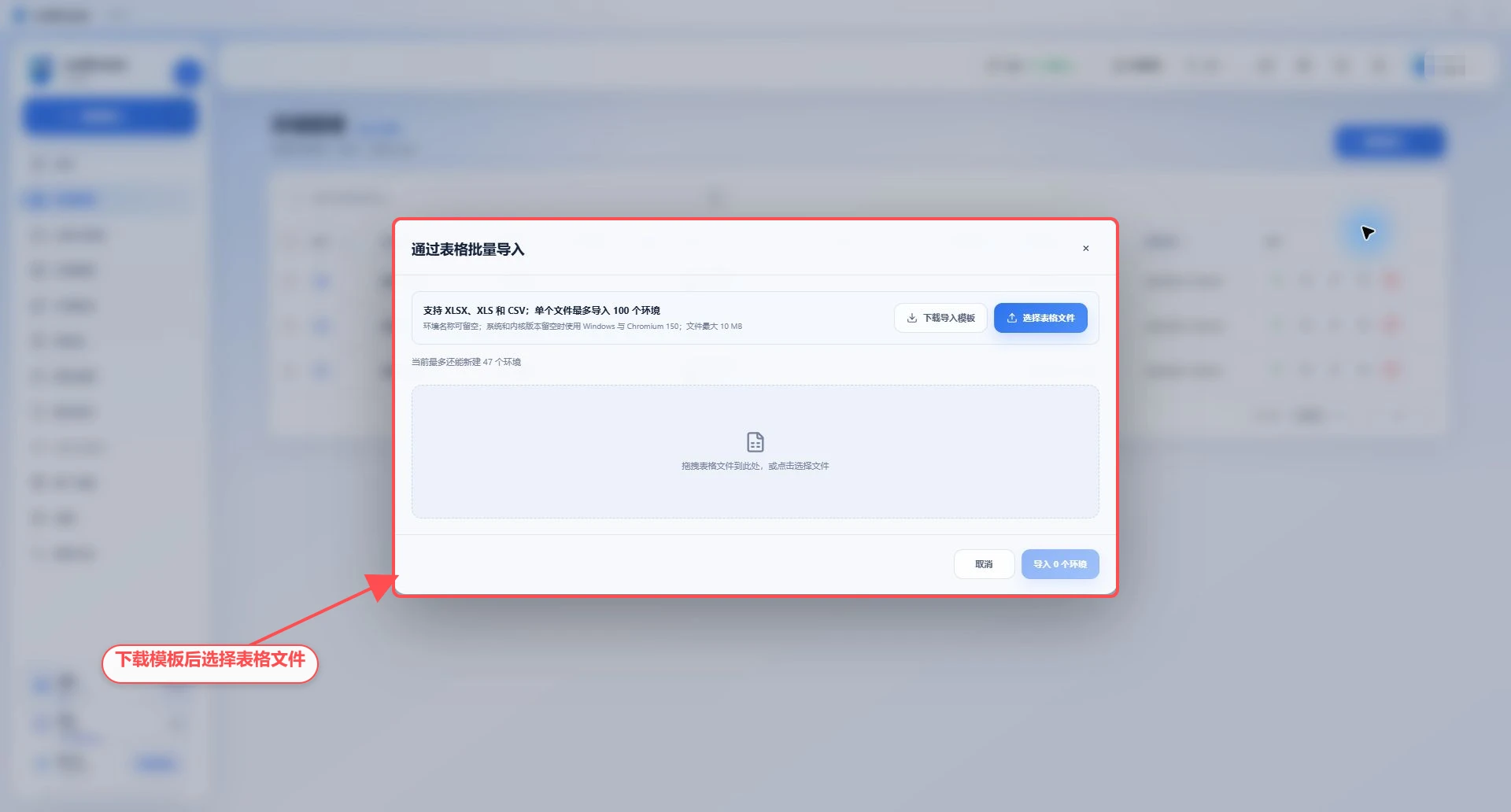
Import profiles from a spreadsheet
Click "More Creation Methods > Spreadsheet import";
Download the import template for the current language;
Fill in the data according to the template;
Upload or drag in XLSX, XLS, CSV files;
View import preview;
Fix any erroneous lines;
Click "Import N profiles".
Limitations and defaults:
A single file can have a maximum of 100 lines and 10 MB;
The profile name can be left blank;
When the system is left blank, it defaults to Windows;
When the kernel is left blank, it defaults to Chromium 150;
Groups that cannot be found are treated as ungrouped;
If only the proxy name is filled in but the corresponding proxy cannot be found, it will be handled as a direct connection;
The proxy content supports the complete proxy URLs of HTTP, HTTPS, and SOCKS5;
After uploading, the verification results in the preview must prevail.
5. Edit and view details
Click the edit button in the profile's Actions column to modify basic information, proxies, browser fingerprints and advanced settings. Modifications to the running profile usually require shutting down and reopening for them to take full effect.
"profile Details" is suitable for read-only inspection configuration; you can enter the edit from the details page when you need to modify it.
6. Sharing profile
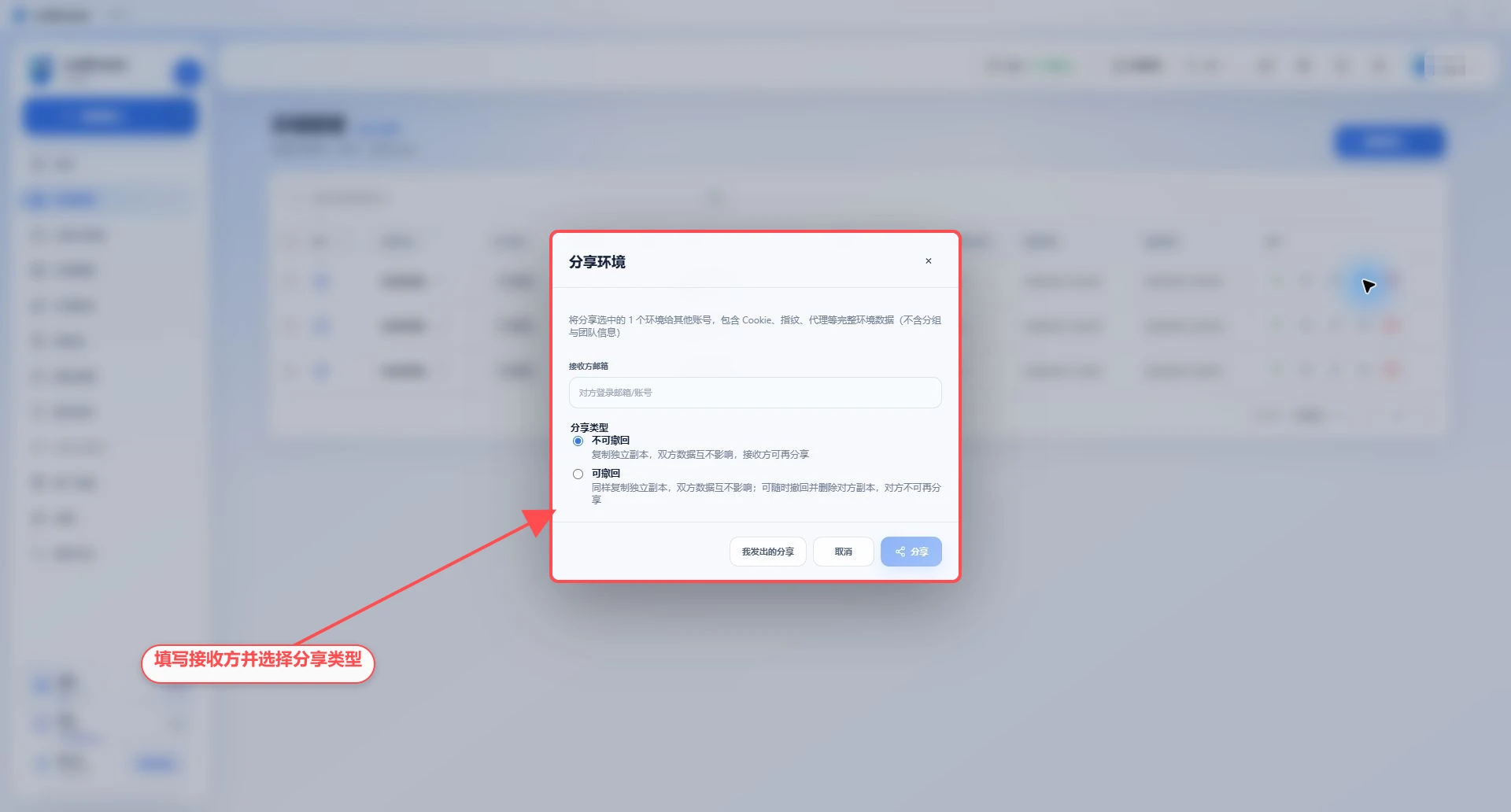
Select one or more profiles and click "Share", fill in the recipient's login email or account, and select the sharing type.
Non-revocable
The receiving party obtains an independent copy, and the data of both parties does not affect each other; the sender cannot withdraw it later, and the receiving party can continue to share.
Revocable
The recipient also gets an independent copy, but the sender can withdraw it in "My Sharing". Revocation will delete the recipient's copy irreversibly, and the recipient cannot continue to share the copy.
Sharing includes complete profile data such as Cookie, browser fingerprints and proxies, and does not include group and team information. The identity of the recipient must be confirmed before sending.
7. Delete the profile
You can choose whether to "delete the profile local cache at the same time" before deleting. The running profile will be shut down first.
Ordinary deletion: the profile enters the Recycle bin and can be restored or permanently deleted;
Delete the cache at the same time: additionally clear the local profile cache;
The Recycle bin is full: You need to empty the Recycle bin first, or choose to delete it permanently after confirmation.
Permanent deletion is irreversible. For important profiles, you should first confirm that the username, Cookie and business data have been backed up.
8. Frequently Asked Questions
There is no change in the proxy after saving
Shut down the running profile and restart it. Make sure you are editing the correct profile and check the proxy test results.
Custom User-Agent cannot be saved
Check whether the content is empty, whether the length exceeds the limit, and whether the Chrome major version matches the kernel major version.
Table import prompts that the proxy is invalid
Check that the protocol column and proxy content are both filled in, that the port is 1–65535, and that a supported proxy URL format is used.
Unable to restore deleted profile
Check profile quotas first. Restoring the profile will reoccupy the quota, and batch restoration will also check the personal upper limits of the members to whom the resources belong.