 Ovobrowser
Install and manage extensions
"Extensions" are used to manage native extensions and are automatically loaded into the browser kernel when the profile is started. Extensions can be applied to all profiles or assigned to specific profiles only.
Install and manage extensions
"Extensions" are used to manage native extensions and are automatically loaded into the browser kernel when the profile is started. Extensions can be applied to all profiles or assigned to specific profiles only.
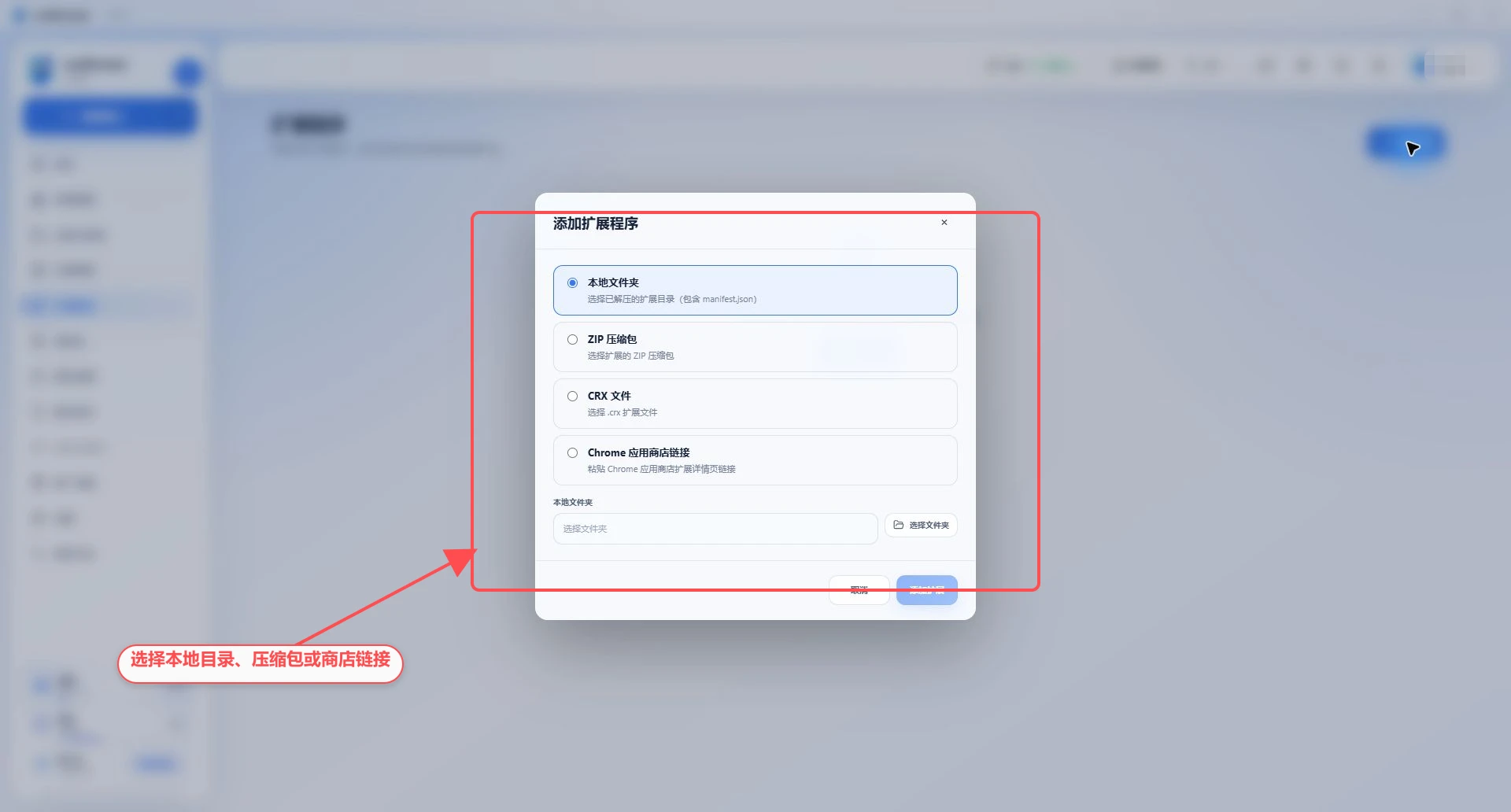
Supported adding methods
Local folder: Select the extension directory that has been decompressed and contains
manifest.json;ZIP compressed package: select the extended
.zipfile;CRX file: select
.crxextended installation package;Chrome App store link: Paste the extension details page link.
Only import extensions from trusted sources. The extension may read web content, Cookie or input data, its permissions and provider should be checked before use.
Add extension
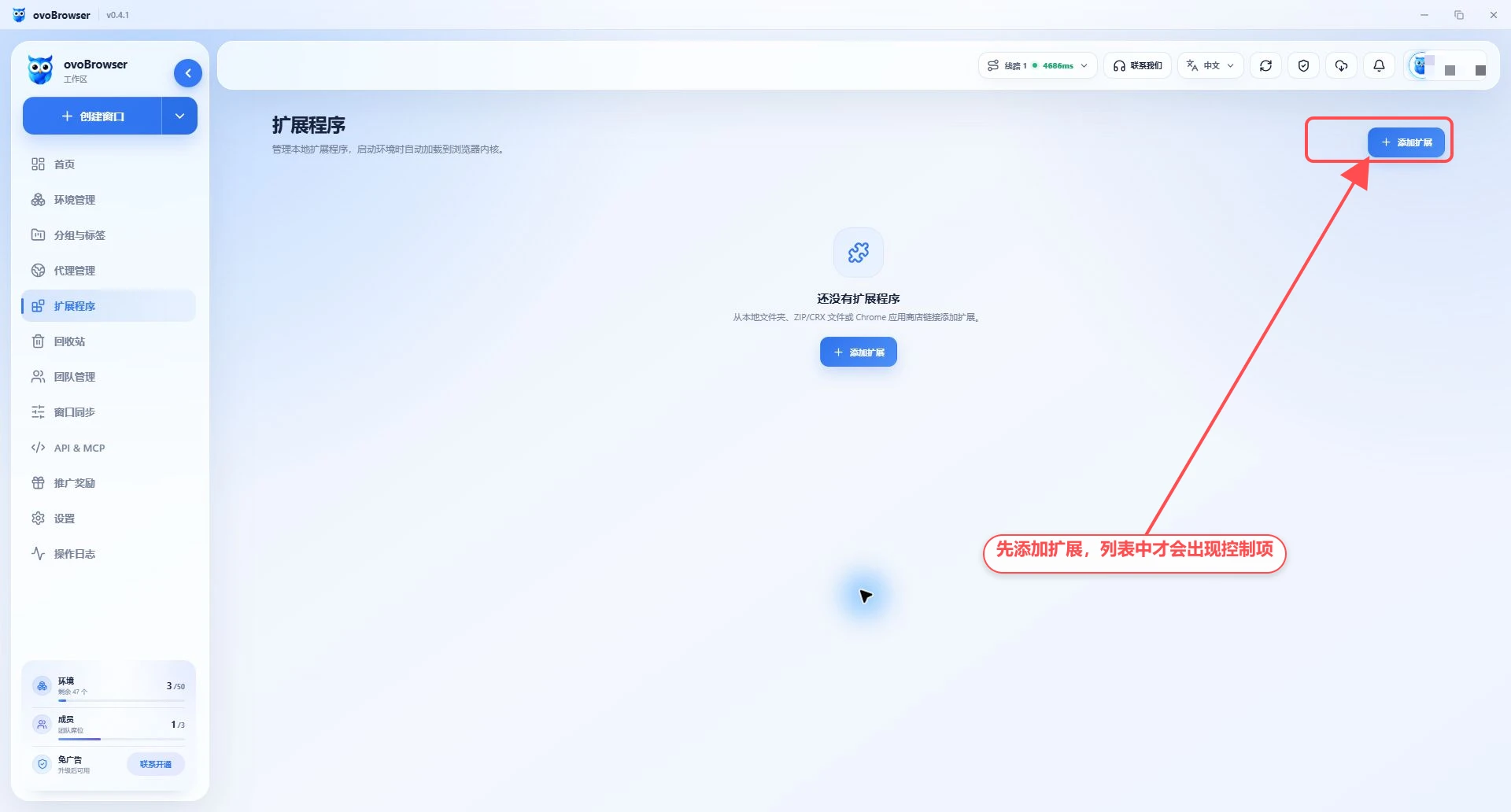
Go to "Extensions";
Click "Add Extension";
Choose how to add;
Click "Select Folder" in folder mode, click "Select File" in ZIP or CRX mode;
Paste the Chrome app store extension details page address as a link;
Start importing after confirming the source;
Wait for the extension to appear in the list.
Get to know the extended list
The extension card displays the name, version, description, provider, and source, and provides:
enable or disable;
Applies to all profiles;
distribution profile;
Open the store page (when there is a store link);
Delete.
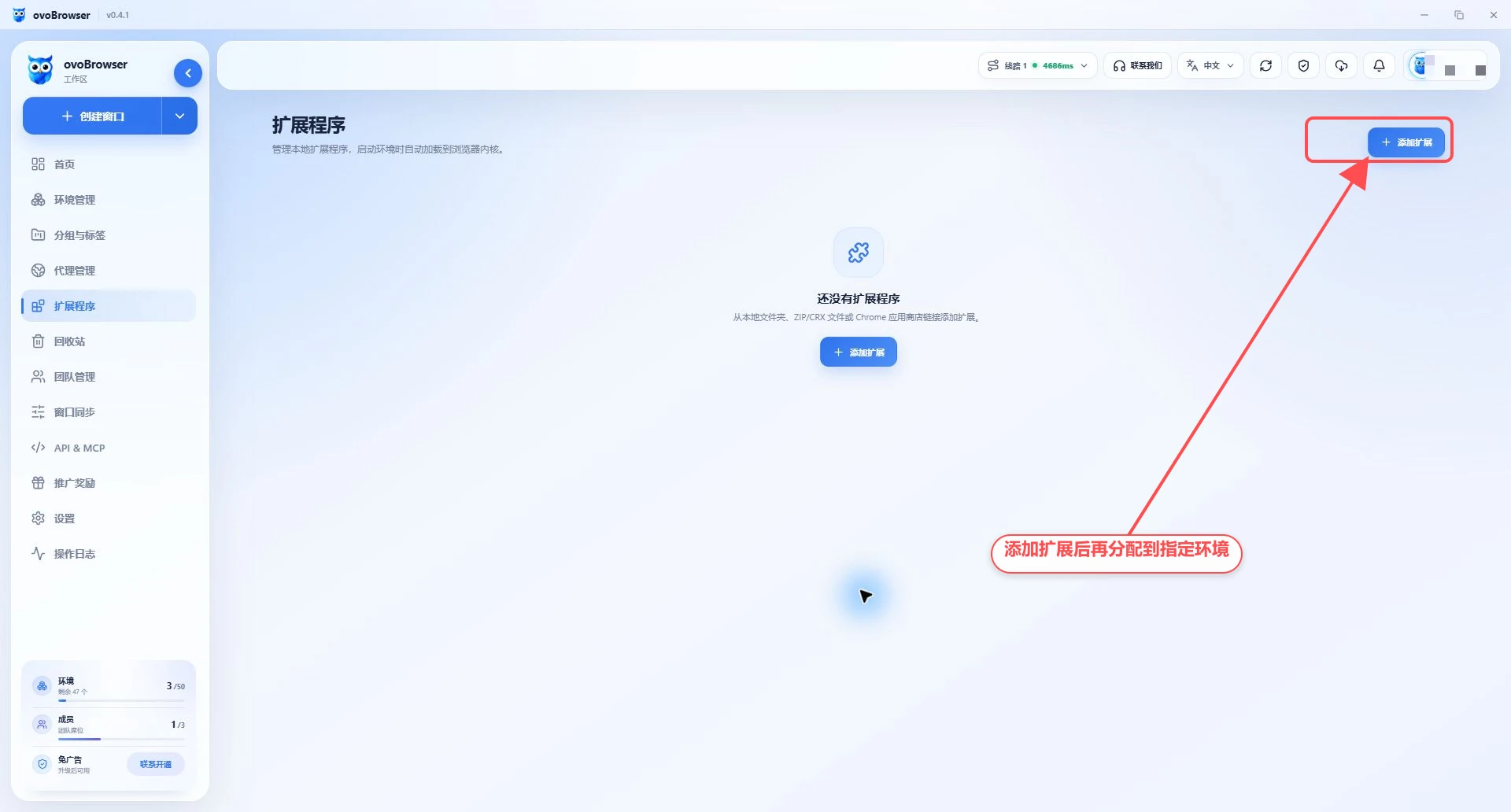
The account used for these screenshots has not imported the extension, so the real page shows an empty state. The expansion card and the above controls will appear only after completing the addition operation in the previous section.
Apply to all profiles
Turn on the extension's "Apply to all profiles" switch. The extension will be loaded when any profile is subsequently started and does not need to be allocated separately.
Running profiles will not automatically reload new extensions. Please close the target profile and reopen it.
Only assigned to specified profiles
Make sure "Apply to all profiles" is not turned on;
Click "Assign profile";
Check the profile where the extension needs to be loaded;
Click Save;
Shut down and restart these profiles.
If the extension list is empty, please add the extension first; if the extension already exists but the profile selection list is empty, go to "Profile Management" to create a profile.
Deactivate and delete
deactivate
After turning off "Enable", the profile started later will not load the extension, but the extension and assignment relationship will still be retained.
Delete
After clicking Delete and confirming, the local expansion files and management records will be removed. The running profile may have to wait until it is shut down to completely uninstall the extensions in the current session.
Update extension
Importing the extension locally requires you to obtain the new version of the file yourself and re-import it. The update behavior of store-sourced extensions depends on the current kernel and extension sources; when strict version control is required, it is recommended to use verified local installation packages.
FAQ
Prompt that manifest.json cannot be found
The local folder must directly contain manifest.json. If there is an outer directory with the same name after decompression, you should select the inner directory that actually contains the manifest file.
ZIP or CRX import failed
Verify that the file is not corrupted, that the extension manifest is compatible with the current Chromium kernel, and that security software blocks decompression or reading.
The extension is enabled but does not show up in the browser
Check whether "Apply to all profiles" is turned on or the target profile has been assigned, then close and restart the profile.
Multiple extensions conflict
Disable extensions one by one and restart the profile to locate conflicts. Don't add a large number of unverified extensions to your production use at once.